
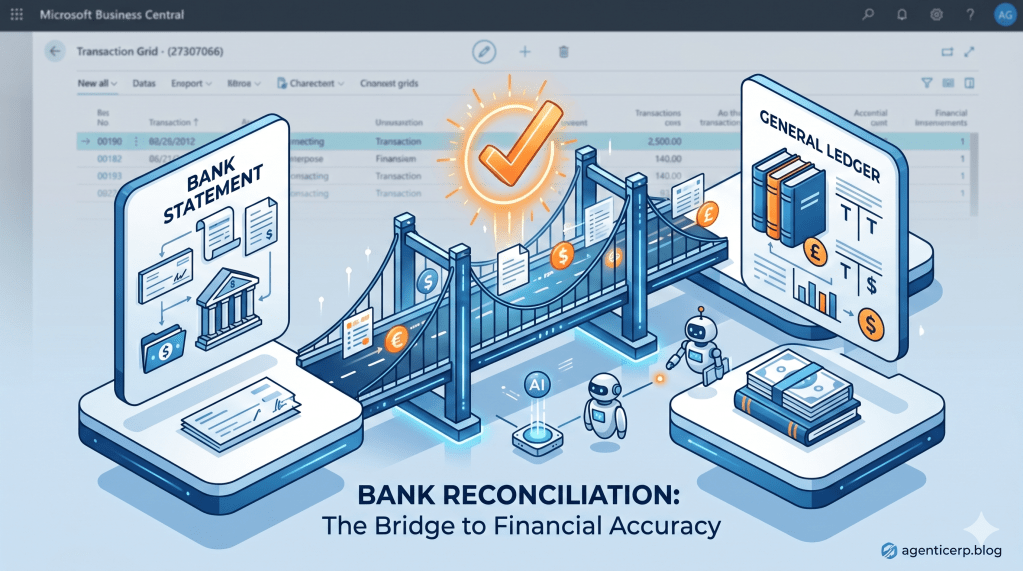
The Challenge: Why Bank Rec Matters
In Business Central, the Bank Account Ledger is your internal truth, and the Bank Statement is the bank’s truth. Bank Reconciliation is the bridge between them. As a Functional Consultant, your job isn’t just to match lines it’s to ensure the data integrity of the entire cash management cycle.
1. The Functional Workflow: Before You Start
Before clicking “New,” ensure these three pillars are in place:
- Bank Account Card: Ensure the “Bank Acc. Posting Group” is correctly linked to the G/L Account.
- Bank Statement Import: Are you using a Data Exchange Definition (AMC/Yodlee) or manual entry?
- Statement Numbering: Check your “Bank Account Nos.” in the Bank Account Setup to avoid gaps in your audit trail.
2. Step-by-Step Execution
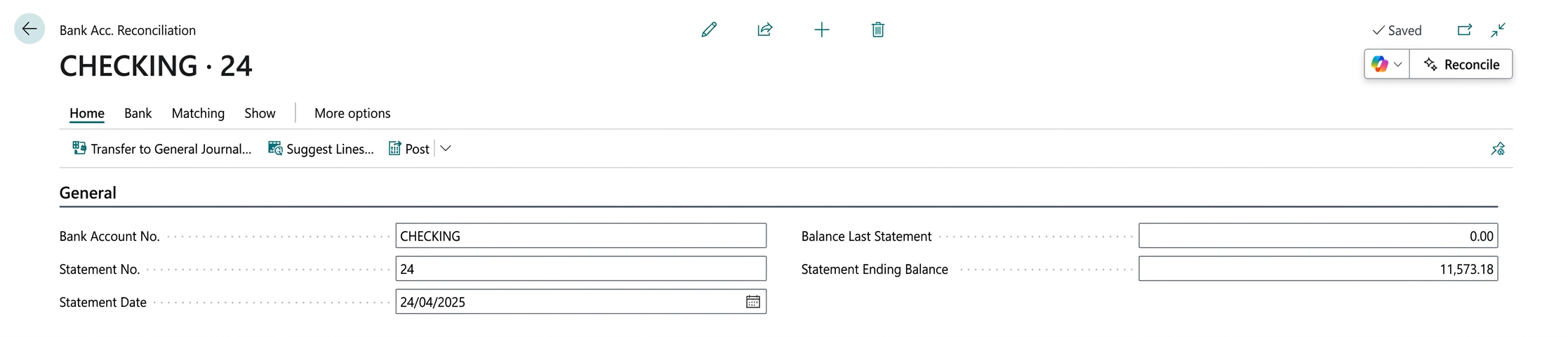
Step A: Import and Initialize
- Search for Bank Acc. Reconciliation.
- Click New and select the Bank Account.
- Architect Tip: Ensure the Statement Date matches the last date on your physical bank statement. This date controls which ledger entries are available for matching.
Step B: The “Match” Process
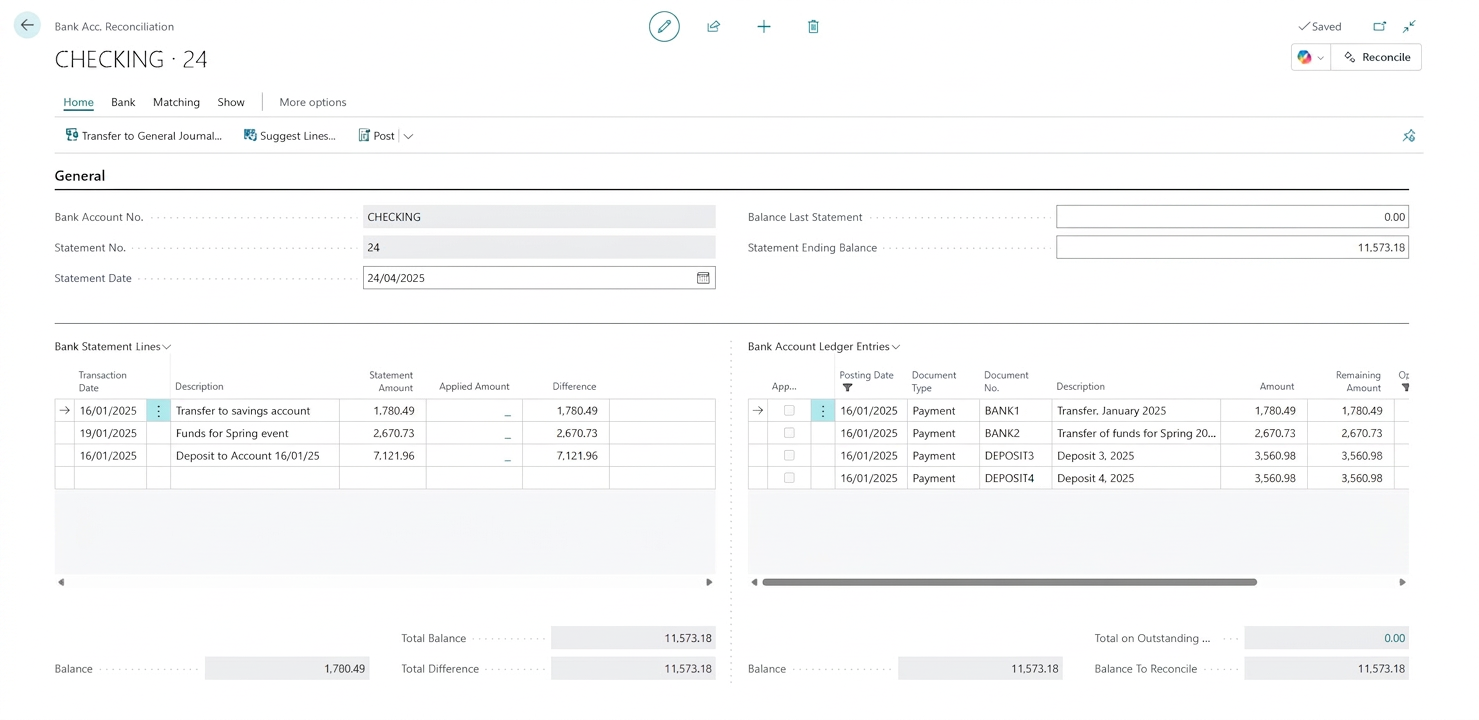
Business Central gives you two ways to match:
- Match Automatically: Use this first! BC looks at Date, Amount, and Description.
- Match Manually: For complex cases (like one payment covering three invoices), highlight the lines on both sides and click Match Manually.
Step C: Handling “The Gap” (Suggest Lines)
What if the bank shows a fee you haven’t recorded yet?
- Use the Process -> Transfer to General Journal action.
- Post the bank fee or interest in the journal.
- Return to the Bank Rec; the entry will now appear on the right side, ready to be matched.
3. The Finance Impact: How the Ledger Changes
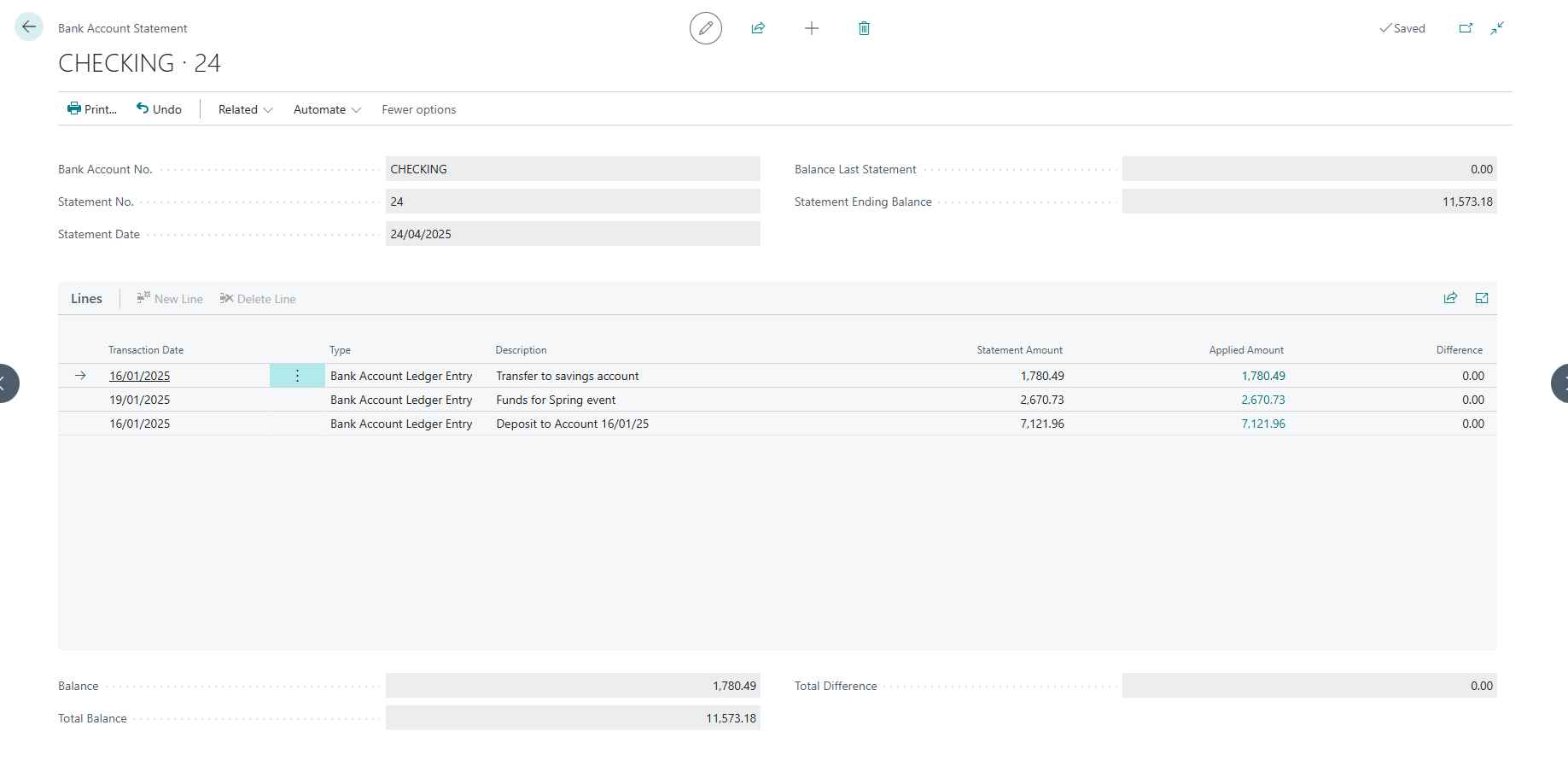
When you click Post, two major things happen:
- Ledger Update: The “Open” status on your Bank Account Ledger Entries is changed to “Closed.”
- Statement History: A Posted Bank Account Reconciliation is created, which serves as your permanent audit record.
4. Best Practices for Functional Consultants
To ensure a smooth implementation, keep these three expert tips in mind:
- Tip 1: The Match Tolerance. You can configure “Match Confidence” to handle real-world timing. By setting a Match Tolerance on the Bank Account Card, you allow the system to automatically match entries even if the dates differ by a few days (e.g., a check clearing 3 days after it was written).
- Tip 2: Undo is Possible. We all make mistakes. If you realize a reconciliation was incorrect after posting, you don’t have to post manual reversals. Use the Undo feature directly on the Posted Bank Acc. Reconciliation page to reopen the entries and fix the error.
- Tip 3: Agentic ERP Preview. As we move toward Agentic ERP, AI agents will eventually handle the majority of routine matching based on historical patterns. This will leave only the most complex exceptions for the consultant to review. Clean, consistent configuration today is what makes that future automation possible.
 Agentic ERP Blog
Leave a comment