
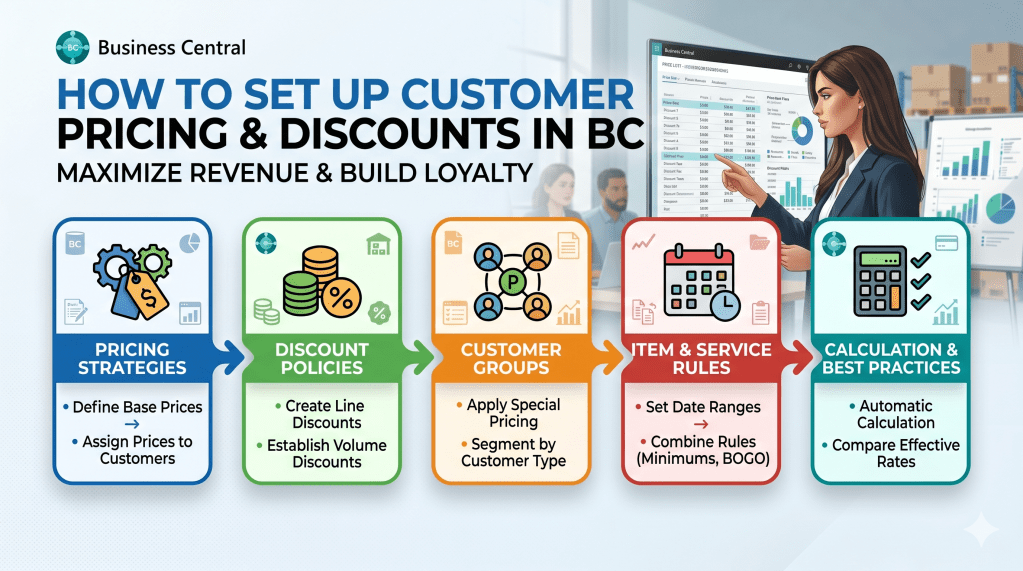
In a competitive market, pricing agility is everything. However, manually adjusting line amounts on individual sales documents is a recipe for operational chaos, human error, and massive margin leakage.
Microsoft Dynamics 365 Business Central offers a highly sophisticated, engine-driven matrix for managing Customer Pricing and Sales Line Discounts. When configured correctly, the system automatically evaluates parameters like the customer’s identity, item volume, unit of measure, and order date to apply the absolute best price for the transaction.
In this field guide, we will walk through the exact end-to-end setup of sales prices and line discounts, analyzing how the engine evaluates rules under the hood.
Step 1: Navigating to Sales Price Lists
Business Central utilizes a unified framework called Sales Price Lists to manage custom pricing models.
To create a new pricing structure, use the global search icon to find and open Sales Price Lists. Click New to open a fresh setup card.
On the general header section of the price list card, assign a clear Description and define your core target rules. Under the Assign-to Type, choose whether this price list applies to:
- All Customers: General baseline public pricing.
- Customer: A specific, high-volume account.
- Customer Price Group: A grouped segment of customers (e.g., WHOLESALE or RETAIL).
Step 2: Defining Pricing Line Rules
Once the header assignment is set, move to the Lines FastTab. This is where your functional parameters map directly to your item master data.
Select the Product Type as Item, and enter your item number. You can then specify the following non-negotiable validation fields:
- Minimum Quantity: The lowest volume threshold required to trigger this custom price (perfect for tier-based quantity breaks).
- Unit Price: The custom amount applied when the criteria are met.
- Starting/Ending Dates: Strict time boundaries that protect margins during seasonal promotional windows.
Architect’s Note: Always ensure the Status field in the header is switched from Draft to Active. If left as a draft, the Business Central calculation engine will completely ignore the price lines during document processing.
Step 3: Configuring Sales Line Discounts
While Price Lists alter the baseline unit price, Sales Line Discounts apply percentage deductions to that active base price. These are managed within the same unified price list framework or via dedicated discount menus.
Create a row where the Line Discount % is populated. For example, you can set a rule stating that if a customer within your WHOLESALE group buys more than 50 units, they get a baseline price adjustment plus an additional 5% line discount.
Step 4: Verification on the Sales Order
The ultimate validation of your setup happens during transactional execution. When a consultant or user opens a Sales Order (Page 42), picks the designated customer, and inputs the item quantity, the pricing engine runs a rapid validation sweep.
The system scans the active, verified records, matches the quantity thresholds, validates the document date against the price list active window, and pushes the correct calculated line price straight to the order line.
Maintaining pristine data integrity within your pricing and discount matrix is critical for standard business operations. However, it represents an even larger milestone in the context of Agentic ERP.
When you deploy autonomous AI Agents to manage customer requests, handle pre-sales quotes, or process electronic data interchange (EDI) orders, the agent relies entirely on these preconfigured pricing rules. If your price list architectures are clean and dimensionally accurate, your AI agents can safely generate flawless, compliant quotes instantly without manual supervision.
How do you prefer to manage complex multi-tier distributor discounts in BC? Let’s discuss in the comments below!

