

Protecting your organization’s cash flow requires a delicate balance: you need to give sales teams the flexibility to close deals while ensuring the finance department maintains strict control over credit risk. In Microsoft Dynamics 365 Business Central, this operational guardrail is managed through two foundational configurations on the Customer Card: Credit Limits and Payment Terms.
When properly architected, these features stop bad debt before it happens and automate invoice due-date calculations without manual data entry. Let’s walk through the exact setup and validation rules from the field.
Step 1: Configuring Credit Limits & Warnings
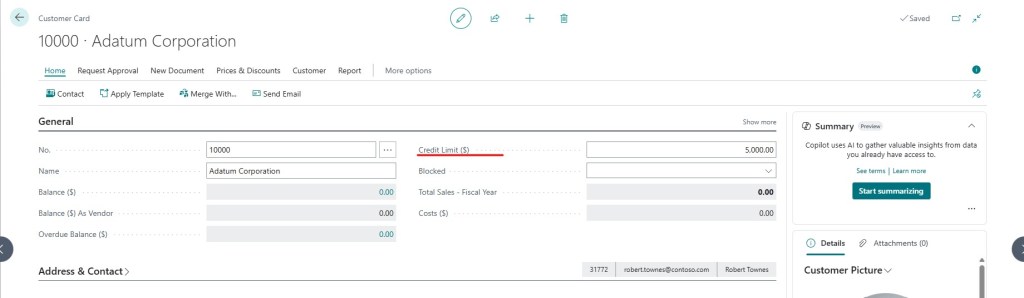
To establish risk parameters for a client, navigate to the Customer Card page. Expand the General FastTab to locate the Credit Limit ($) field.
Input the maximum outstanding financial balance you are willing to expose this customer to.
Next, scroll down or search for your global Sales & Receivables Setup. Under the General section, ensure that the Credit Warnings field is configured. You can choose between:
- Both Warnings: Triggers alerts if the customer exceeds their credit limit or has an overdue balance.
- Credit Limit: Only alerts when the transaction pushes them over the total credit amount.
- No Warning: Completely disables the guardrail (not recommended).

Step 2: Setting Up Smart Payment Terms
While credit limits restrict total exposure, Payment Terms dictate the timeline of your cash inflows. Search for the Payment Terms master table page.
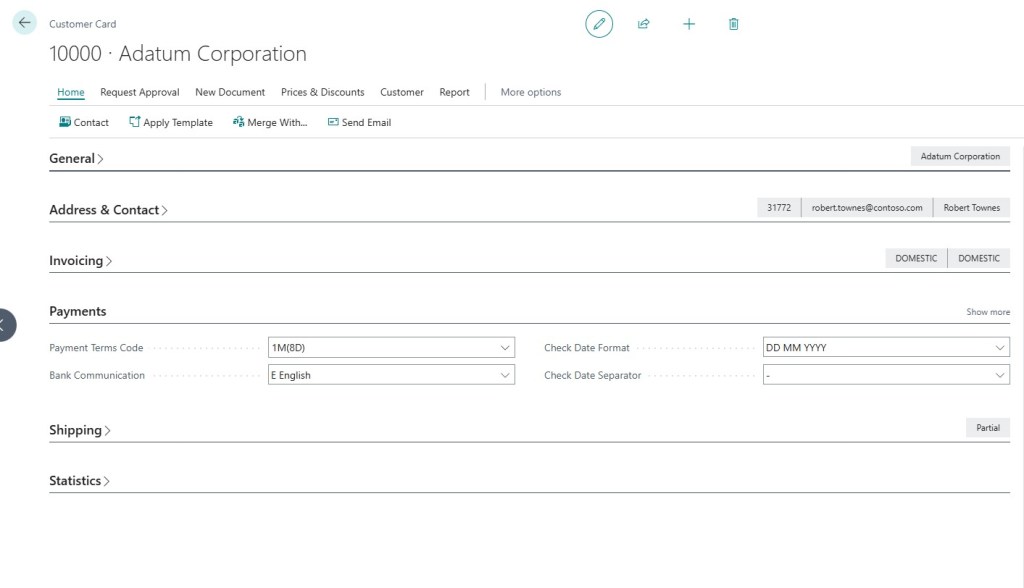
Here, you define the calculation logic using Microsoft’s standard date formulas. For example, a code for 1M(8D) tells the system that the invoice is due exactly one month from the posting date, but if they pay within 8 days, they qualify for a cash discount.

Once defined, map the appropriate code to the customer under the Payments FastTab of their Customer Card.
Step 3: Operational Enforcement on a Sales Document
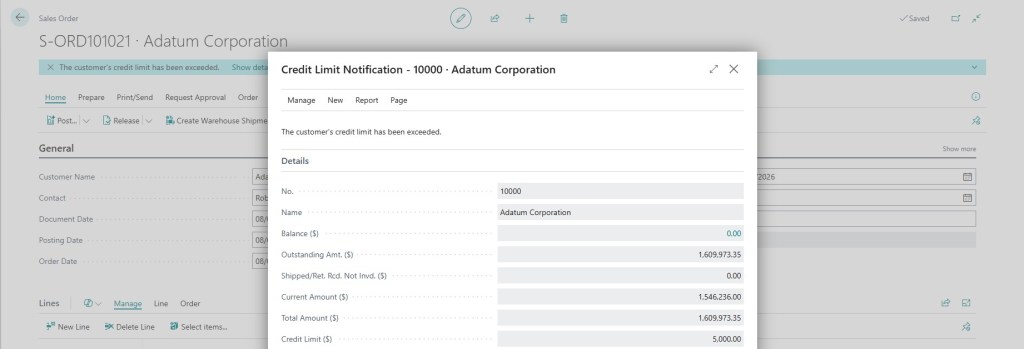
The true test of this configuration happens live on a sales document. When a salesperson attempts to release or post a Sales Order that pushes the customer’s total open balance (Invoiced + Shipped + Outstanding Orders) past their defined threshold, the system triggers an immediate validation alert.
Depending on your user permissions setup, the system can block the document from being released, requiring a credit manager to manually inspect the account and approve an extension.
The Foundation for Agentic Automation
Maintaining clean parameters for risk management is vital for standard business logic, but it is a massive game-changer for Agentic ERP.
When deploying AI Agents to handle autonomous order entry or customer service lines, these built-in boundaries act as digital guardrails. If an AI agent receives an inbound order via email or EDI, it can instantly run a background check against these exact Business Central rules. If a credit limit is breached, the agent can autonomously put the order on hold and draft a polite email requesting payment on older invoices driving collections without human intervention.
How do you handle credit approval workflows for corporate groups with multiple child accounts? Let’s discuss in the comments below!

