
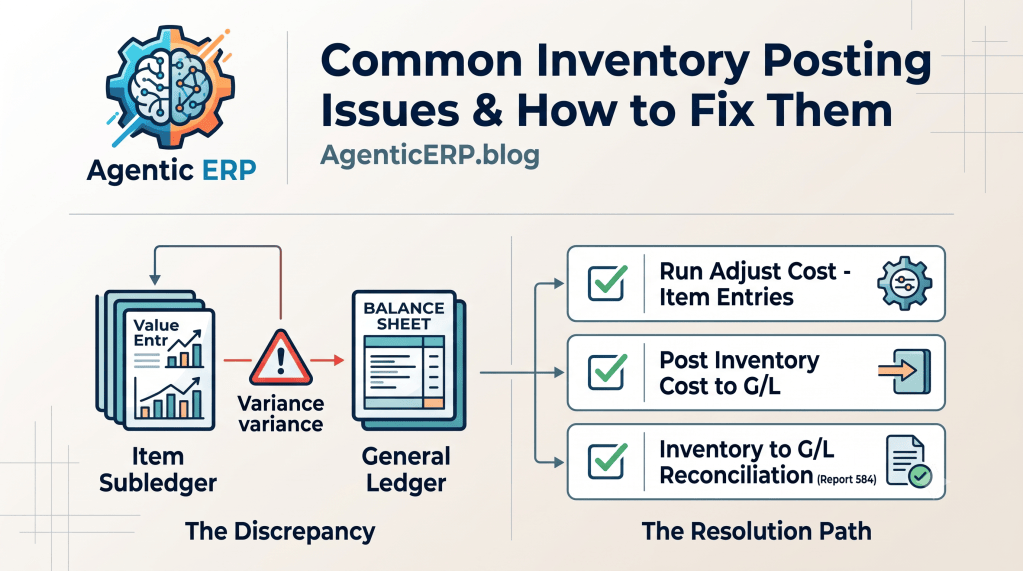
Few things cause more friction between operations and finance than a month-end inventory reconciliation that doesn’t balance.
Warehouse supervisors post receipts, sales reps process drop shipments, manufacturing lines consume components, and everything seems smooth on the surface. But when finance opens the Inventory Valuation report against the General Ledger, numbers don’t match, transactions fail with posting group errors, or margins appear completely distorted.
In Microsoft Dynamics 365 Business Central, inventory valuation sits at the intersection of two distinct engines: the Item Subledger (Item Ledger Entries and Value Entries) and the General Ledger. When configurations drift or batch jobs are overlooked, errors occur.
In this guide, we break down the top inventory posting issues encountered in Business Central, why they happen, and the exact steps to resolve them.
1. Issue: “Inventory Valuation Does Not Match the General Ledger”
This is the classic month-end discrepancy. The Inventory Valuation report shows an inventory balance of $250,000, but the Balance Sheet Inventory G/L accounts show $235,000.
Root Causes:
- Cost Adjustment hasn’t run: Business Central records expected costs at posting time, but dynamic cost adjustments (e.g., invoiced item charges, inbound landed costs) require the cost adjustment routine to calculate the final valuation.
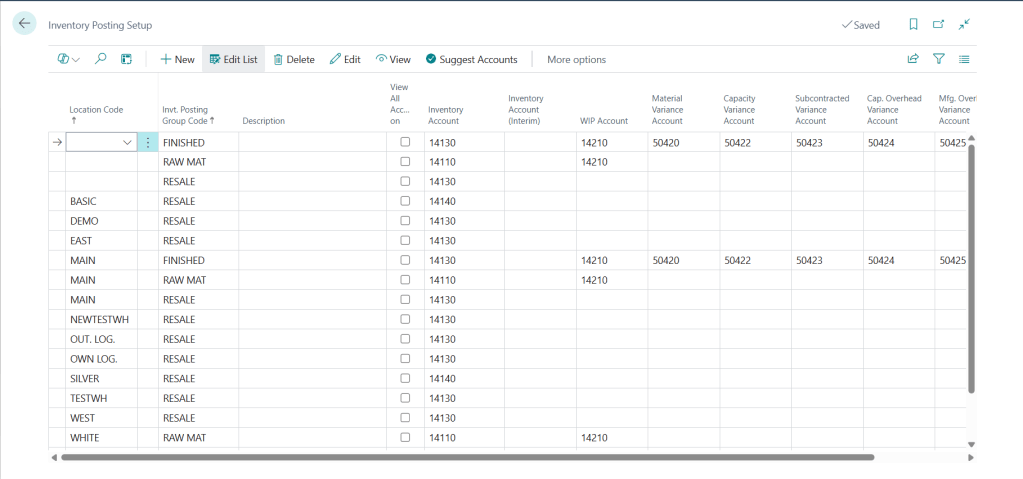
- Automatic Cost Posting is disabled: The system may be adjusting Value Entries in the background, but those adjustments haven’t been pushed to the General Ledger.
- Direct Posting to Inventory G/L Accounts: A user manually entered a General Journal transaction directly against an inventory control account.
How to Fix It:
- Run Cost Adjustment: Execute the Adjust Cost – Item Entries batch job. This updates the Value Entries with true, settled purchase prices and overhead.
- Post Cost to G/L: Run the Post Inventory Cost to G/L batch job (or ensure Automatic Cost Posting is enabled in Inventory Setup).
- Lock Direct Posting: Open the Chart of Accounts, locate your Inventory Balance Sheet accounts, and ensure the Direct Posting toggle is set to No. Never allow manual General Journal lines directly into inventory control accounts.
2. Issue: “Gen. Bus. Posting Group / Inventory Posting Setup Does Not Exist”
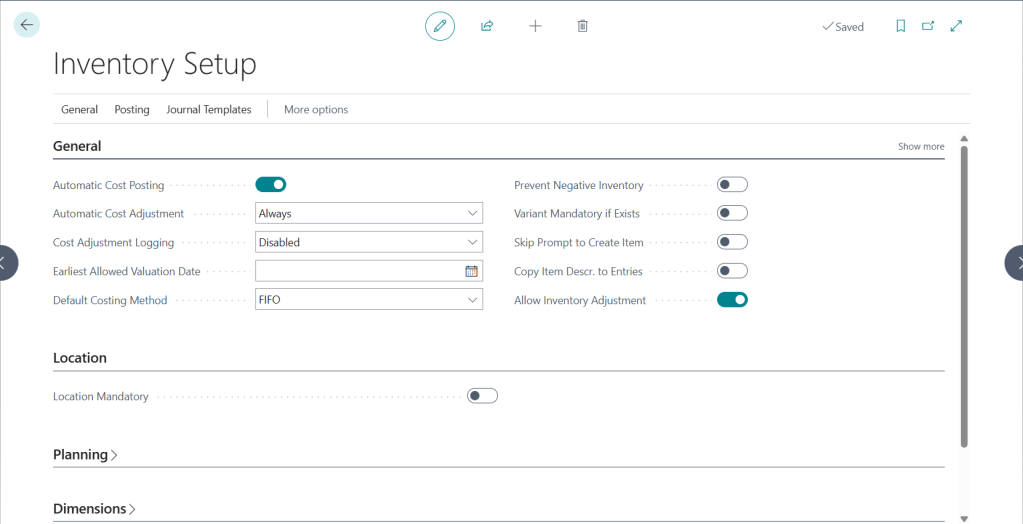
When attempting to post an Item Journal, Purchase Receipt, or Sales Invoice, the system stops with a hard validation error: "Inventory Posting Setup does not exist. Identification fields and values: Location Code='', Invt. Posting Group Code='FINISHED'"
Root Cause:
Business Central cannot find a financial routing line that connects the combination of the document’s Location Code and the item’s Inventory Posting Group to a defined Balance Sheet account.
How to Fix It:
- Navigate to Inventory Posting Setup.
- Identify the missing combination flagged in the error message.
- Add a new record mapping the specific Location Code (or leave it blank if no location is assigned) to the Invt. Posting Group Code.
- Define the Inventory Account (Balance Sheet) and Inventory Account (Interim).
3. Issue: Distorted Gross Margins on Sales Entries
Finance runs a sales margin report and notices an item that sells for $100 shows an astronomical margin of 98% because the COGS is recorded as $2.00, even though the latest purchase was $75.00.
Root Causes:
- Costing Method is FIFO or Average, but purchases were not invoiced: If goods are sold while the purchase order is only Received (not Invoiced), Business Central uses an estimated/expected cost.
- Delayed Inbound Invoicing: If the vendor invoice arrives weeks later with higher shipping charges or revised unit prices, COGS on historical sales lines remains unadjusted until cost adjustment recalculates the cost layer.
How to Fix It:
- Run Adjust Cost – Item Entries for that specific Item No. to pull settled purchase costs into downstream outbound entries.
- Verify that Item Charges (such as freight or import duties) were correctly assigned and posted against the original purchase receipt using the Get Receipt Lines function.
- Review the Unit Cost on the Item Card. If the item had zero unit cost when created, initial inventory entered at $0.00 will skew historical average layers.
4. Issue: “The Item Ledger Entry is already closed”
When trying to post an item charge, return order, or cost revaluation, Business Central blocks the transaction stating that the entry is already closed.
Root Cause:
Under FIFO costing, once the remaining quantity of an Item Ledger Entry reaches zero, the system marks the entry as Open = False. While Business Central allows cost-only Value Entries on closed items, certain transactions cannot link directly if subsequent entries are locked or if inbound lines are completely settled.
How to Fix It:
- Use the Standard Cost Worksheet or Revaluation Journal to adjust valuation rather than forcing negative item adjustments.
- For landed costs arriving long after physical stock has been sold out, post an Item Charge on a Purchase Invoice and use the Assign Item Charge tool directly to the historical Posted Purchase Receipt. Business Central will intelligently post the additional cost straight to the COGS account of the closed outbound sales entry.
5. Issue: Negative Inventory Distorting Cost Calculations
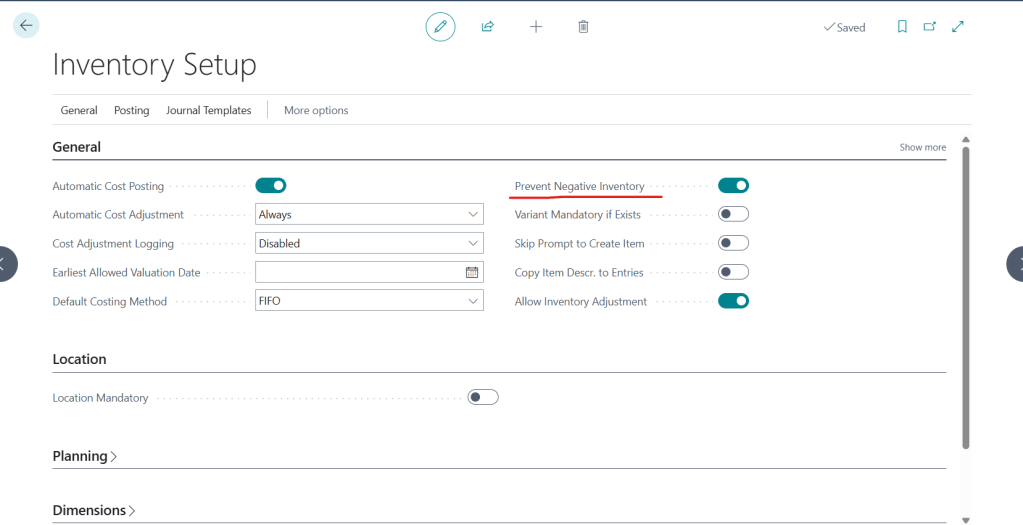
Allowing negative inventory (selling items before recording the inbound receipt) is one of the most common causes of costing anomalies in Business Central.
When an item drops below zero, Business Central cannot apply a historical purchase layer. It temporarily assigns the Item Card’s static Unit Cost. When the actual purchase receipt is posted later at a different cost, the system must perform retroactive, complex cost adjustments across all intervening transactions.
Sale of 5 units (Stock = 0): Assumes Temp Cost ($10/ea) ──> Cost Layer: Uncertain
Purchase of 5 units @ $15/ea: Stock returns to 0
Cost Adjustment Routine: Must recalculate past sales, post retrospective Value Entries
How to Prevent It:
- Go to Inventory Setup.
- Ensure the Prevent Negative Inventory toggle is turned ON globally, or configure it on specific critical Item Cards.
Diagnostic Checklist for Month-End Reconciliation
When closing inventory each month, run this sequence to keep subledgers and the General Ledger aligned:
- Run Adjust Cost – Item Entries across all items via Job Queue.
- Run Post Inventory Cost to G/L to flush all Value Entries into G/L entries.
- Run the Inventory Valuation report as of the last day of the month.
- Compare the report total to the sum of your Balance Sheet Inventory G/L accounts.
- If a variance exists, run the Inventory to G/L Reconciliation report (
Report 584) to identify which document or transaction caused the imbalance.
Looking Ahead: The Agentic ERP Horizon 🤖
Inventory troubleshooting has historically been a reactive exercise performed during stressful month-end closing windows.
In an Agentic ERP architecture:
- Autonomous Posting Guard Agent: An AI agent monitors unposted warehouse shipments, receipts, and open item journals in real time. If a missing posting group combination or unmapped location is detected, it alerts the system administrator before the user clicks Post, preventing failed batch jobs.
- Costing Drift & Margin Anomaly Agent: An agent continuously inspects newly posted sales shipments against real-time vendor pricing. If a transaction exhibits an abnormal margin deviation (e.g., >25% variation from standard target), the agent flags the line, checks if open purchase receipts are awaiting vendor invoices, and drafts an advisory note for finance.
Summary
Most inventory posting issues in Business Central are not software glitches—they are configuration gaps, skipped cost adjustment jobs, or manual journal entries in locked accounts. By standardizing posting group setups, preventing negative inventory, running scheduled cost adjustment routines, and reconciling with Report 584, you maintain a healthy inventory subledger and eliminate month-end surprises.

