
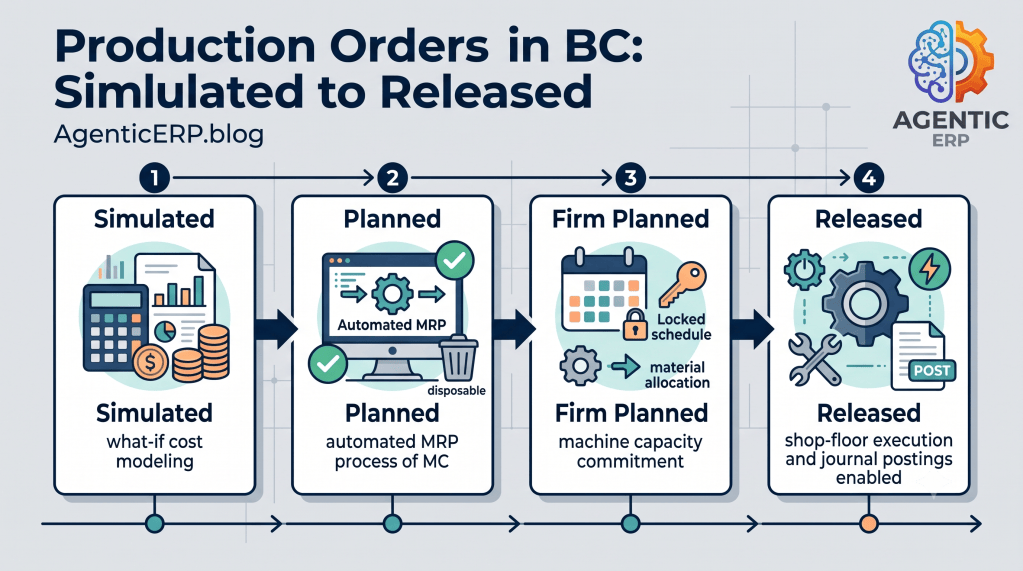
In Microsoft Dynamics 365 Business Central, a Production Order is not just a digital document it is an evolving state machine. As a manufacturing order progresses from high-level capacity planning to the physical shop floor, its status changes, unlocking specific capabilities, calculating material demand, and locking down financial commitments.
A common point of confusion for consultants and production planners is understanding how order statuses transition particularly the differences between Planned, Firm Planned, and Released and what running the Refresh Production Order batch actually does behind the scenes.
In this guide, we break down the five distinct production order statuses in Business Central, how the “Refresh” engine calculates components and routings, and how to govern status transitions across your manufacturing lifecycle.
1. The 5 Production Order Statuses at a Glance
Business Central provides five distinct operational states for production orders. Each represents a specific phase of commitment:
[ Simulated ] ──► [ Planned ] ──► [ Firm Planned ] ──► [ Released ] ──► [ Finished ]
(What-if cost) (MRP output) (Locked schedule) (Shop floor) (Financial close)
1. Simulated
- Purpose: “What-if” cost and capacity modeling.
- Planning Impact: Does not generate demand for components in MRP and does not consume machine/work center capacity.
- Best Used For: Quoting custom engineer-to-order (ETO) machinery or evaluating how a potential spike in raw material costs impacts margins before committing.
2. Planned
- Purpose: System-generated suggestions from the Planning Worksheet (MRP/MPS).
- Planning Impact: Generates component demand and reserves rough capacity, but is completely disposable. If demand shifts or a sales order date changes, the next MRP run can modify, reschedule, or delete this order automatically.
- Best Used For: Automated medium-term supply planning.
3. Firm Planned
- Purpose: The bridge between planning and shop-floor execution.
- Planning Impact: MRP respects this order as a committed plan. MRP will not automatically reschedule or delete a Firm Planned order without planner intervention; it will instead suggest change action messages.
- Best Used For: Orders confirmed by the production manager where raw materials must be procured, tooling prepared, and labor scheduled.
4. Released
- Purpose: Active execution on the production floor.
- Operational Impact: Only Released orders can have actual consumption and output posted against them (via Consumption Journals, Output Journals, or Production Journals). Material can be picked, and finished goods can be received into inventory.
- Best Used For: Active jobs currently on the shop floor.
5. Finished
- Purpose: Administrative and financial closure.
- Accounting Impact: The order is locked permanently. No further time or material can be posted. Business Central calculates final WIP clearing, actual vs. expected costs, and material/capacity variances.
2. Status Comparison Matrix
| Status | Demand on MRP? | Capacity Allocated? | Allows Journal Posting? | Can MRP Auto-Delete? |
| Simulated | No | No | No | N/A (Manual only) |
| Planned | Yes | Yes (Draft) | No | Yes |
| Firm Planned | Yes | Yes (Committed) | No | No (Action message only) |
| Released | Yes | Yes (Active) | Yes (Output/Consumption) | No |
| Finished | No | No (Cleared) | No (Completely locked) | No |
3. The Engine: What “Refresh Production Order” Actually Does
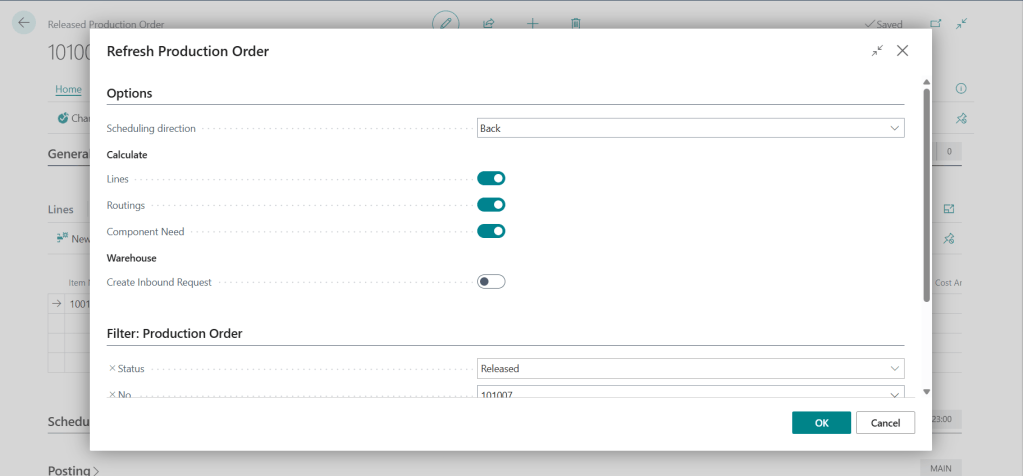
When you manually create a Production Order or convert one from a sales line, Business Central creates a header, but the operational lines are empty.
Running Refresh Production Order triggers the core manufacturing calculation engine:
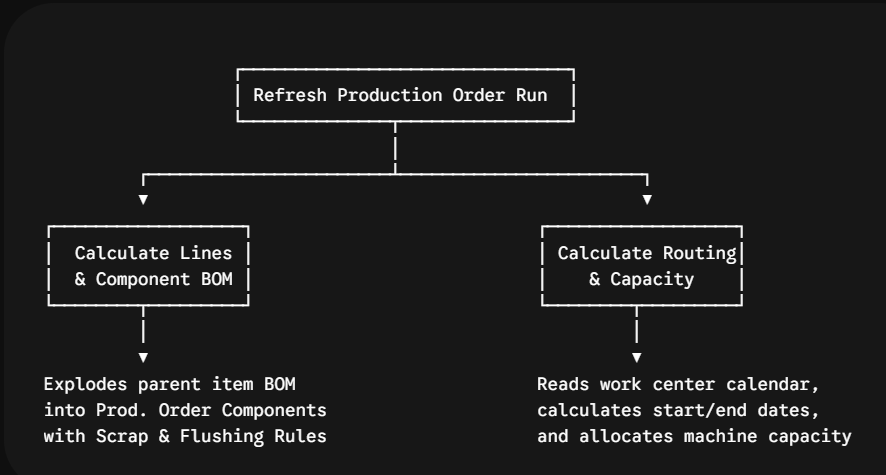
The Refresh Options Explained:
- Direction (Backward vs. Forward):
- Backward: Starts at the required Due Date and schedules backward to calculate the latest possible Starting Date (minimizes holding cost).
- Forward: Starts at the Starting Date (e.g., today) and calculates the earliest possible Completion Date.
- Calculate Lines: Explodes the Production BOM attached to the Item Card and creates the Prod. Order Lines.
- Calculate Routings: Traverses the active Routing, evaluates machine capacities and setup times, and schedules operations.
- Calculate Component Need: Determines gross component requirements based on item quantity, scrap factors, and scrap codes.
Critical Warning: If you manually customize a component line or alter operation run times on a specific order, running Refresh again will overwrite your manual edits with the default master data from the Item BOM and Routing!
4. Status Transition Lifecycle in Practice
How an order moves through everyday operations:
Step 1: MRP Run (Planned -> Firm Planned)
- The planner runs the Planning Worksheet. Business Central suggests producing 200 units of finished goods based on sales demand.
- The planner accepts the suggestion and selects Carry Out Action Message, creating a Firm Planned Production Order.
Step 2: Scheduling & Component Staging (Firm Planned -> Released)
- The shop supervisor reviews capacity load across Work Centers.
- Once raw materials arrive at the receiving dock, the supervisor clicks Change Status -> selects Released.
- Releasing prints the shop traveler/job card and generates warehouse pick documents (if warehouse picks are required at that location).
Step 3: Execution & Output (Released)
- Shop floor workers record scrap, actual material consumed, and operation setup/run times using the Production Journal.
- Finished units are outputted and posted to inventory.
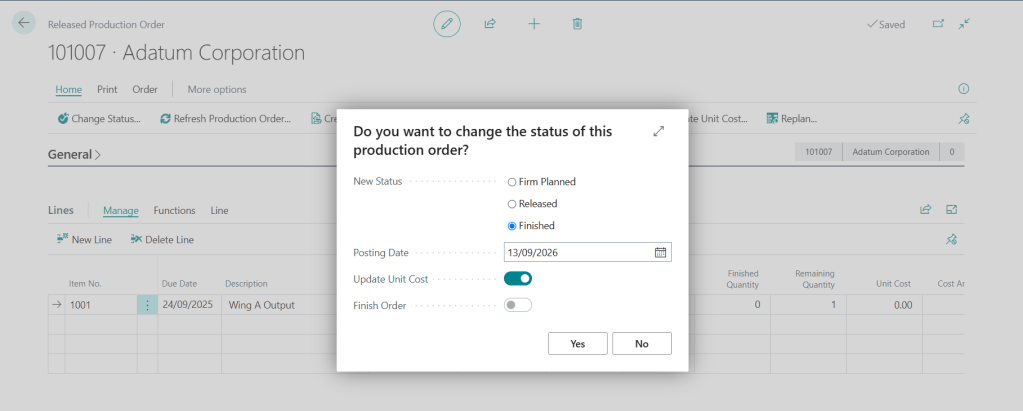
Step 4: Cost Closure (Released -> Finished)
- Once all output is complete, the supervisor clicks Change Status -> selects Finished.
- Business Central flushes remaining WIP accounts, posts cost variances to the General Ledger, and moves the order to Finished Production Orders.
Common Pitfalls & Troubleshooting
| Issue / Error | Root Cause | Solution |
| “There is nothing to post” | Attempting to post a Consumption or Output Journal while the order is still Firm Planned. | Change the order status to Released before posting shop floor journals. |
| Manual component edits disappeared | A user ran Refresh Production Order after manually adding unique components to the order. | Never re-run Refresh after customizing order components; manually update quantities instead. |
| Cannot change status to Finished | Open warehouse activities (e.g., registered picks or open warehouse put-aways) are still pending. | Ensure all associated warehouse documents are registered or deleted before finishing the order. |
Looking Ahead: The Agentic ERP Horizon 🤖
Status transitions and order refreshes require constant coordination between planners, buyers, and machine operators.
In an Agentic ERP architecture:
- Autonomous Rescheduling Agent: An AI agent monitors Work Center operational status in real time (via IoT machine telemetry). If Work Center 10 experiences an unscheduled breakdown, the agent identifies all impacted Firm Planned and Released orders, recalculates alternative routings across secondary work centers, and updates operation schedules before the bottleneck halts the plant.
- Component Readiness Agent: Before a planner transitions an order from Firm Planned to Released, an agent checks real-time inventory, lot expiry dates, and inbound PO tracking. If a required raw material is delayed, it holds the status, notifies the supervisor, and recommends an alternate production order that is 100% material-ready.
Summary
Production order statuses in Business Central provide an intentional progression from theoretical planning to disciplined shop-floor execution. Understanding when to use Planned vs. Firm Planned protects schedules from erratic MRP overwrites, while mastering the Refresh routine ensures component and routing calculations reflect real plant capabilities.

