
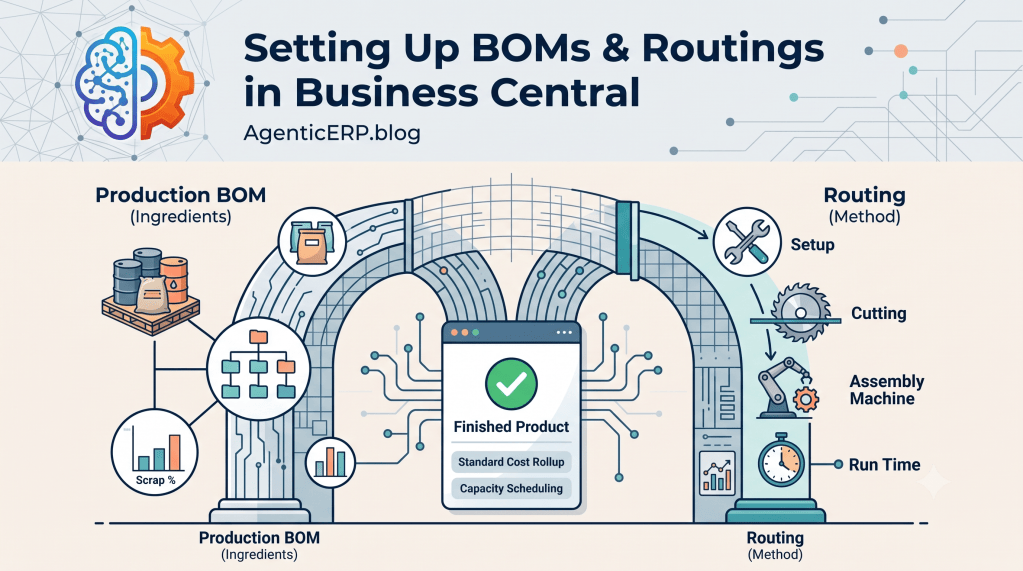
Every manufactured product in an ERP system relies on two core questions: What goes into it? and How is it made?
In Microsoft Dynamics 365 Business Central, these questions are answered by Production Bills of Materials (BOMs) and Routings.
Together, they form the structural blueprint for manufacturing. The Production BOM determines raw material demand, scrap allowances, and standard unit costing. The Routing establishes operational sequences, work center capacities, labor run times, and overhead rates. If either structure is misconfigured, MRP generates inaccurate purchase suggestions, production schedules collapse into bottlenecks, and standard cost variances become impossible to reconcile.
In this guide, we break down how to design, configure, and link Production BOMs and Routings in Business Central with architect-level precision.
1. The Core Anatomy: BOM vs. Routing
While both reside in the manufacturing module, they govern completely distinct operational and financial dimensions:
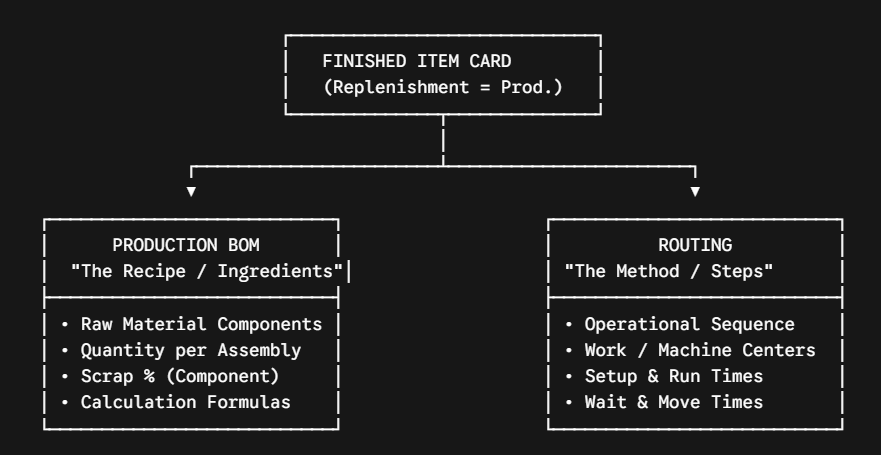
Production BOM: Dictates material requirements and inventory consumption.
Routing: Dictates time, resource capacity, sequencing, and labor/machine cost absorption.
2. Configuring Production BOMs
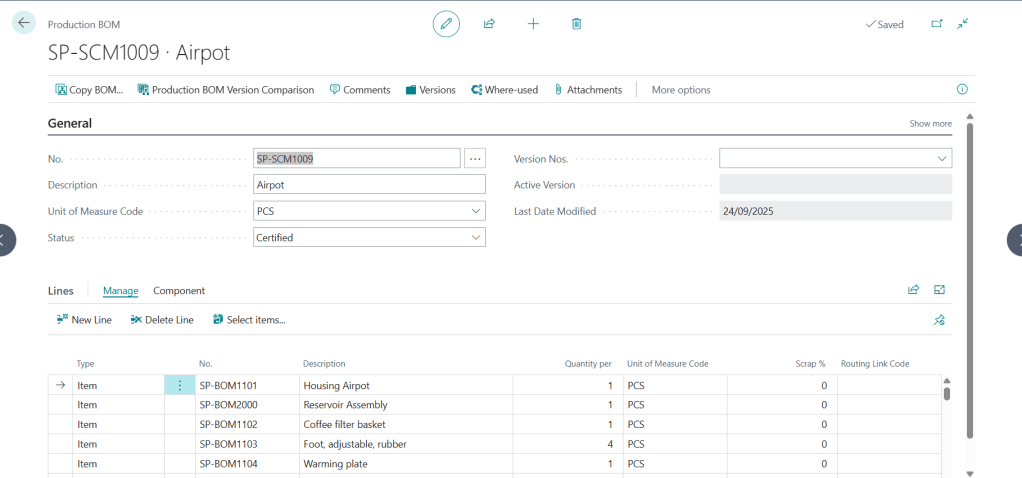
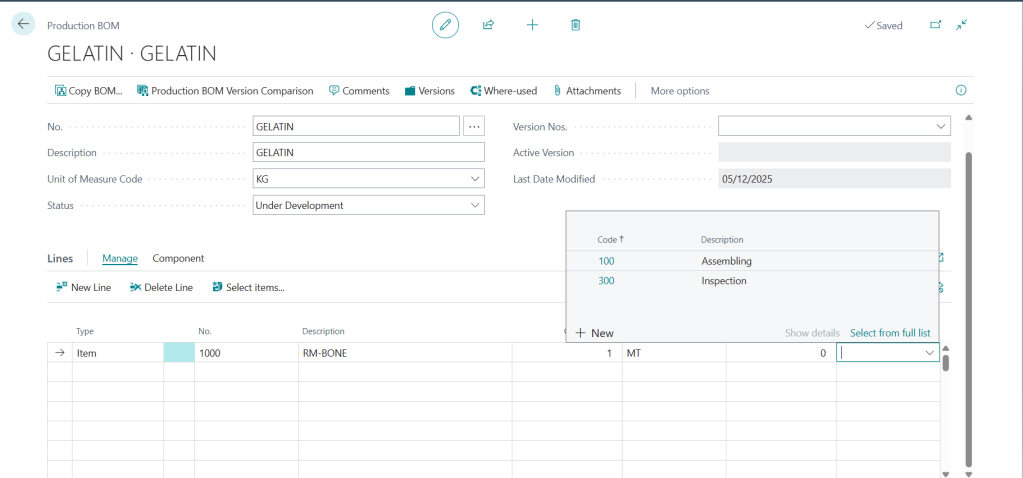
Navigate to Production BOMs and click New.
Header Settings
- No. & Description: Use clear, standardized identifiers (e.g.,
BOM-CHAIR-01). - Unit of Measure: Must match the Base Unit of Measure of the finished item (or have an established unit of measure conversion).
- Status: Must be set to Certified before Business Central allows it to be assigned to an Item Card or refreshed on a production order.
Line Configurations & Key Fields
- Type:
- Item: A physical raw material or sub-assembly item.
- Production BOM: Used for multi-level phantom BOMs where a sub-assembly is exploded directly onto the parent order without creating a stocked sub-assembly inventory line.
- Quantity per: The exact quantity of the component required to produce one unit of the parent item.
- Calculation Formula: Standard is
Blank(direct multiplication), but you can useLength,Width,Depth, orWeightcalculations for sheet metal, lumber, or textile manufacturing. - Scrap %: Defines anticipated yield loss specific to that raw material (e.g., 5% loss during cutting). Business Central inflates gross component requirements during MRP runs accordingly.
- Routing Link Code: Connects a specific component to an operational step in the Routing (covered in section 4).
Architect Tip: Always establish Version Management if your engineering team frequently updates recipes. Business Central allows you to maintain multiple active BOM versions governed by starting dates.
3. Configuring Routings
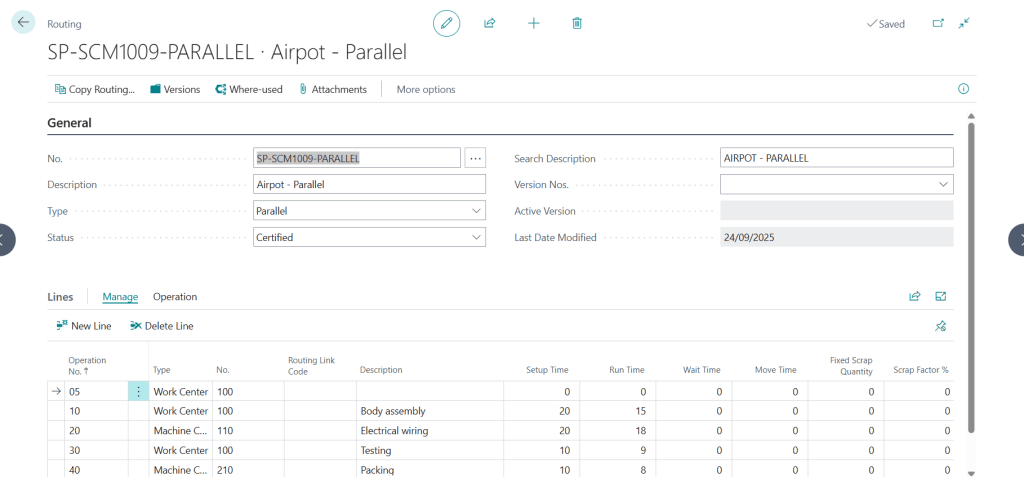
Navigate to Routings and click New.
Header Settings
- Type:
- Serial: Operations must be executed strictly one after another (Operation 10 -> Operation 20 -> Operation 30).
- Parallel: Operations can run concurrently across different work centers before converging at an assembly or inspection station.
- Status: Must be set to Certified to attach to active items.
Line Details & Time Units
Each line represents an operation on the factory floor:
- Operation No.: Sequenced in intervals (e.g.,
10,20,30). Leaving gaps allows future operations to be inserted without renumbering. - Type: Select Work Center (a broader department, e.g., Assembly Dept) or Machine Center (a specific individual asset, e.g., CNC Lathe 01).
- Setup Time: Fixed duration required to prep the machine/tooling before production begins, regardless of batch size.
- Run Time: Variable duration required to produce one unit of the parent item.
- Wait Time / Move Time: Non-productive buffer times between operations used by the scheduling engine to calculate realistic order completion dates.
- Scrap Factor %: Operation-level scrap representing defects created specifically at that machine center.
4. The Critical Connection: Routing Link Codes & Flushing
One of the most common pitfalls in Business Central manufacturing is items being consumed at the wrong time, distorting Work-in-Process (WIP).
By default, if an order takes two weeks to produce across five operations, Business Central flushes all raw materials on Day 1.
How Routing Link Codes Solve This:
- Open Routing Link Codes and define common milestones (e.g.,
CUTTING,ASSEMBLY,PAINT,PACK). - Assign the code
ASSEMBLYto Operation 20 on your Routing. - Assign the same code
ASSEMBLYto the specific bolts and brackets on your Production BOM.
The Impact on Flushing Methods:
When you use Routing Link Codes combined with Backward Flushing:
- Raw materials are not consumed when the order is released.
- Components linked to
ASSEMBLYare automatically consumed only when Operation 20 is posted in the Output Journal. - Components linked to
PACKremain unconsumed until the final packaging operation is completed.
Operation 10: CUTTING ──► Only raw steel consumed
│
Operation 20: ASSEMBLY ──► Fasteners & brackets consumed (via Routing Link Code)
│
Operation 30: PACKING ──► Boxes & manuals consumed at final output
5. Linking Master Data to the Item Card
Once both structures are certified, attach them to the parent finished good:
- Open the Item Card for the manufactured item.
- Navigate to the Replenishment FastTab:
- Replenishment System: Set to
Prod. Order. - Manufacturing Policy:
Make-to-StockorMake-to-Order. - Routing No.: Select your certified Routing.
- Production BOM No.: Select your certified Production BOM.
- Flushing Method: Define your consumption logic (
Manual,Forward,Backward, orPick + Backward).
- Replenishment System: Set to
- Under the Costs & Posting FastTab:
- Run the Calc. Standard Cost action to roll up component purchase prices, setup costs, run-time labor, and work center overhead into a precise standard unit cost.
Common Pitfalls & How to Avoid Them
| Issue / Error | Root Cause | Solution |
| “Status must be New or Under Development” | Attempting to edit a BOM or Routing that is currently set to Certified. | Change status to Under Development, make your structural adjustments, and set it back to Certified. |
| MRP suggests wrong raw material quantities | The parent BOM has scrap defined, and individual component lines also have scrap defined, causing double inflation. | Use Component Scrap for material-specific waste (e.g., offcuts) and Item Scrap for final assembly rejection. |
| Capacity load shows zero days | Work Center calendars were never generated or shop calendars have no active work shifts. | Run Calculate Work Center Calendar to ensure working days and hours are active. |
Looking Ahead: The Agentic ERP Horizon 🤖
Master data maintenance for complex assemblies has traditionally been slow and prone to human error when engineering revisions occur.
In an Agentic ERP architecture:
- Autonomous CAD-to-BOM Ingestion Agent: An AI agent inspects incoming mechanical CAD drawings or PLM export files, extracts structured part lists, verifies whether component item cards exist in Business Central, and drafts a new Production BOM version without manual keying.
- Dynamic Routing Optimization Agent: An agent continuously monitors machine telemetry and historical Output Journals. When it identifies that Operation 20 consistently takes 15% longer than the static Routing Run Time, it flags the variance, suggests an updated run-time rate to industrial engineering, and recalibrates forward-scheduling models in MRP.
Summary
Production BOMs and Routings are the operational engine of Business Central manufacturing. By decoupling materials from processes, setting disciplined scrap factors, and bridging operations using Routing Link Codes, you gain precise WIP tracking, accurate capacity schedules, and clean standard cost rollups.

