
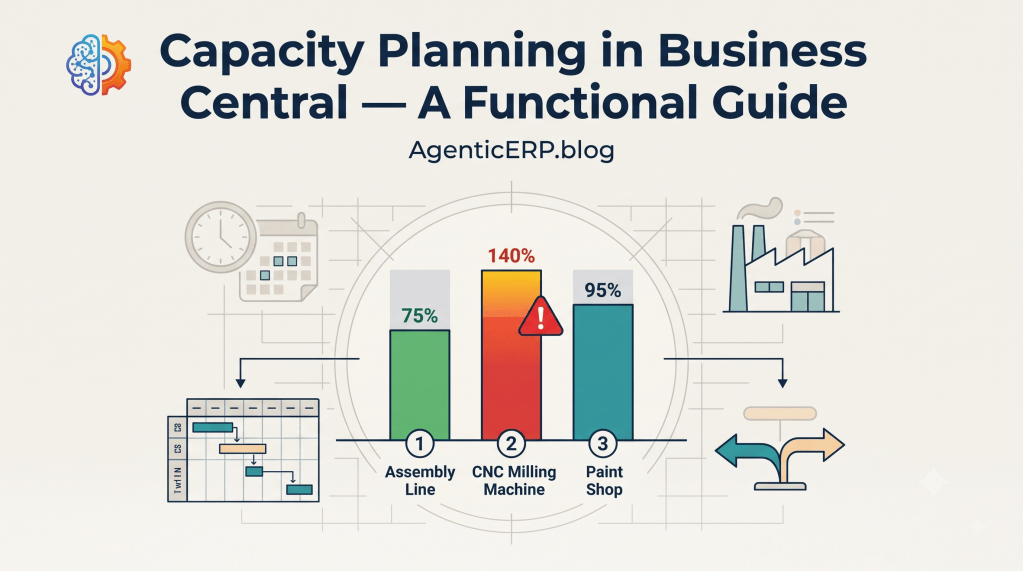
In manufacturing, knowing what raw materials to purchase is only half the battle. A warehouse full of components means nothing if your paint booth is backlogged by two weeks or your primary CNC machine is scheduled at 180% capacity.
Material Requirements Planning (MRP) ensures you have the inventory to build; Capacity Requirements Planning (CRP) ensures you have the operational machine hours, work shifts, and labor bandwidth to actually execute.
In Microsoft Dynamics 365 Business Central, capacity planning bridges the gap between customer delivery promises and real-world shop floor constraints. When configured correctly, it prevents production bottlenecks, balances machine loads, and drives accurate Order Promising (Capable-to-Promise).
In this functional guide, we break down how capacity is structured in Business Central, how to configure work and machine centers, set up shop calendars, and manage operational loads.
1. The Capacity Hierarchy in Business Central
Capacity in Business Central is modeled hierarchically across three distinct levels:
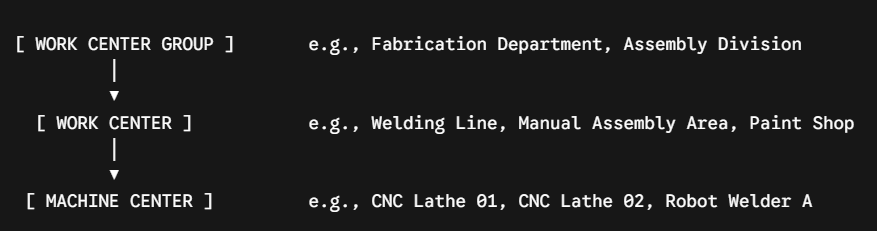
- Work Center Groups: High-level departmental groupings used primarily for capacity reporting, high-level load analysis, and executive overviews.
- Work Centers: Broad functional work areas or departments. They can hold their own capacity or act as an aggregation point for individual machine centers.
- Machine Centers: Specific individual physical machines, workstations, or operators. Machine centers always roll their costs and capacities up to a parent Work Center.
Architect Rule of Thumb: If your machines in a department are interchangeable and don’t create individual bottlenecks, plan at the Work Center level. If specific machines have unique speeds, setup requirements, or operational constraints, configure granular Machine Centers.
2. Setting Up Shop Calendars and Working Shifts
Before a machine can be scheduled, Business Central needs to know when the plant is open. Capacity does not exist until a Shop Calendar is established and calculated.
Step 1: Define Work Shifts
Navigate to Work Shifts and define your operating shifts (e.g., 1ST = 07:00 to 15:30, 2ND = 15:30 to 00:00).
Step 2: Configure the Shop Calendar
- Open Shop Calendars and create a code (e.g.,
STANDARD-5D). - Click Working Days and map each day of the week to your shifts, defining working hours and break durations.
- Open Holidays within the calendar to specify scheduled non-working days or annual factory shutdowns.
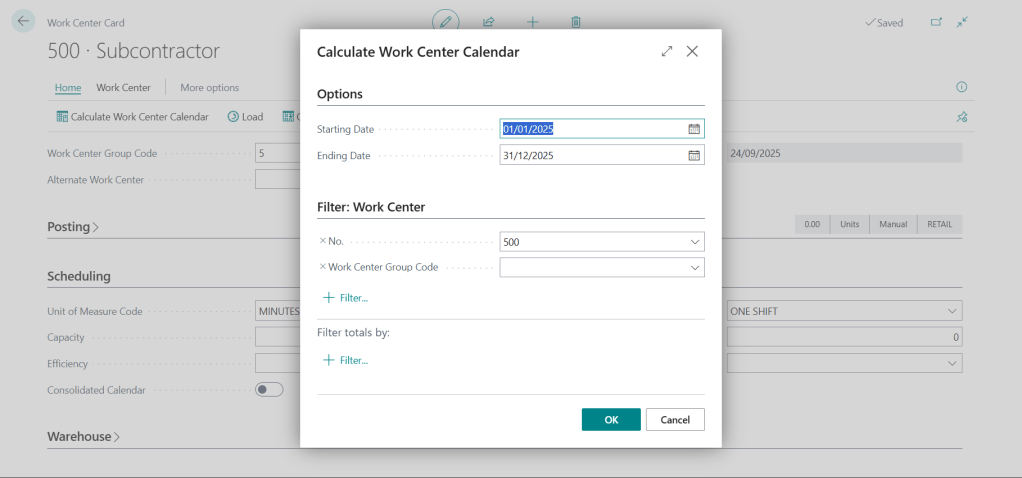
Step 3: Calculate the Calendar Matrix
Attaching a calendar to a center does not automatically generate time slots.
- Open the Work Center card and choose Calculate Work Center Calendar.
- Specify a horizon (e.g.,
01/01/26to12/31/26) and click OK. - Business Central populates the Calendar Entries table with available operating minutes.
3. Configuring Work Center & Machine Center Cards
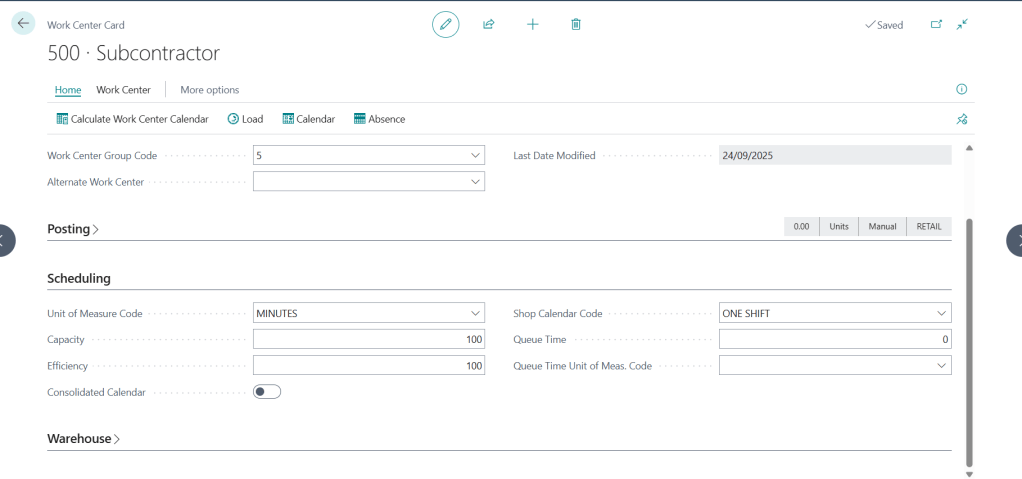
When setting up a Work Center or Machine Center, several fields dictate how capacity and costs are absorbed:
Critical Setup Fields:
- Capacity: The number of identical parallel resources available (e.g., a Work Center with 3 identical manual assembly benches operating under one supervisor has a Capacity of
3). - Efficiency %: Real-world performance factor. If an older machine regularly runs at 80% of rated manufacturer speed, entering
80automatically inflates required run time calculations during scheduling. - Shop Calendar Code: The base working hours assigned to this resource.
- Unit Cost Calculation: Dictates how standard costing absorbs machine run time vs. labor overhead.
- Direct Unit Cost & Overhead Rate: Used in standard cost rollups to convert run hours into product valuation.
4. Finite vs. Infinite Loading
One of the most consequential decisions in Business Central capacity planning is choosing between Infinite and Finite scheduling.
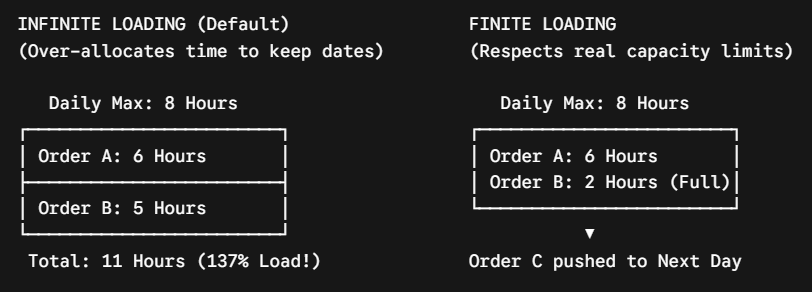
1. Infinite Loading (Default)
- Business Central assumes resources have limitless bandwidth.
- If five production orders are due on Friday, the system schedules all operations on Friday, showing a Work Center load of 300% or 400%.
- When to use: Early-stage planning, or when production planners prefer manually leveling capacity bottlenecks on visual scheduling boards.
2. Finite Loading
- Business Central respects real machine constraints. If a machine only has 8 available hours in a day, the system will not schedule more than 8 hours.
- Subsequent operations are automatically shifted to the next available working window, pushing out order start/end dates.
- How to configure:
- Open the Work Center or Machine Center card.
- Set Capacity limits and specify a Finite Loading Tolerance (or configure finite loading in Manufacturing Setup).
5. Analyzing Center Loads: Spotting Bottlenecks
Once Production Orders are scheduled (Planned, Firm Planned, or Released), planners need to inspect capacity utilization.
Key Tools for Load Evaluation:
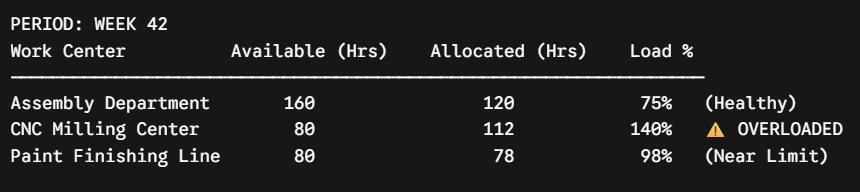
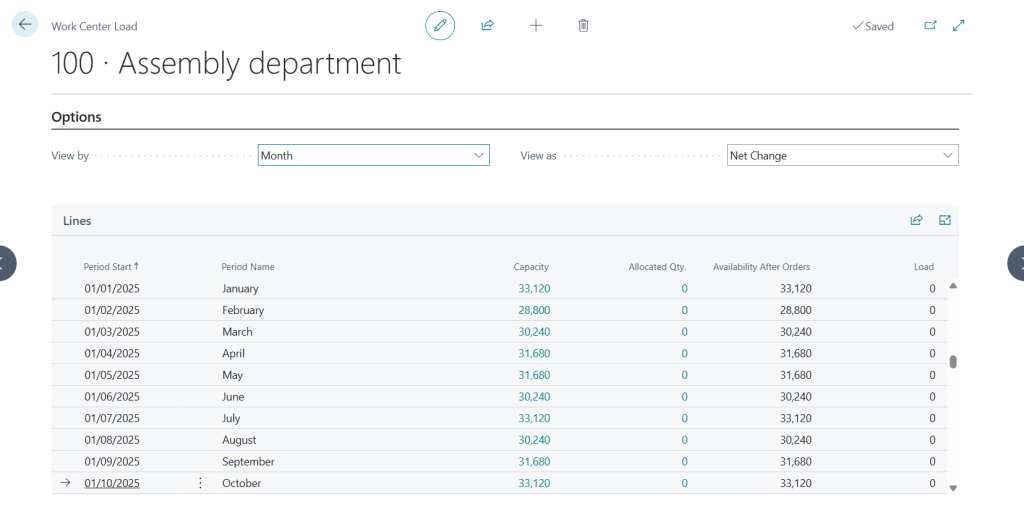
- Work Center Load Page: Displays capacity utilization by period (Day, Week, Month).
- Allocated Qty: Total planned hours/minutes booked by production orders.
- Capacity (Effective): Total gross available minutes from the calendar.
- Load %: The percentage ratio ($(\text{Allocated} / \text{Capacity}) \times 100$). Red-flag any period exceeding 100%.
- Work Center Load / Bar Chart: Visual inspection of peak bottlenecks across work centers over time.
Common Pitfalls & How to Avoid Them
| Mistake / Trap | Practical Impact | Solution |
| “Calendar has not been calculated” | Orders fail to schedule or show zero duration because date ranges lack calendar entries. | Run Calculate Work Center Calendar whenever shifts change or at the start of every calendar year. |
| Over-using Finite Loading | Rigid finite constraints cause scheduling gridlock, pushing delivery dates out months for minor operations. | Apply finite loading only to true, non-negotiable bottleneck machines; leave upstream/downstream prep centers infinite. |
| Ignoring Efficiency % | Orders fall behind schedule because the system assumes 100% textbook output speed on aging equipment. | Calibrate Efficiency % based on historical Output Journal actuals. |
Looking Ahead: The Agentic ERP Horizon 🤖
Traditional capacity planning relies on rigid static shifts and manual load leveling when machines fail or backlogs spike.
In an Agentic ERP architecture:
- Autonomous Load Balancing Agent: An AI agent monitors Work Center Load matrices in the background. When it detects an overload on Machine A (>110% load), it automatically inspects active Firm Planned orders, identifies operations that share alternate routings or identical work center skills, and proposes rebalanced machine assignments before planners start their shift.
- Predictive Maintenance Scheduling Agent: Integrating machine telemetry and vibration sensors via IoT, an agent anticipates spindle or motor failure. It automatically reserves a 4-hour maintenance block in the Shop Calendar, adjusts available capacity, and reschedules impacted production orders without human intervention.
Summary
Capacity Requirements Planning turns theoretical bill of materials recipes into realistic shop floor schedules. By structuring clear work center hierarchies, maintaining active shop calendars, understanding the trade-offs of finite loading, and monitoring operational loads, you eliminate production surprises, protect your margins, and deliver on customer promises.

