
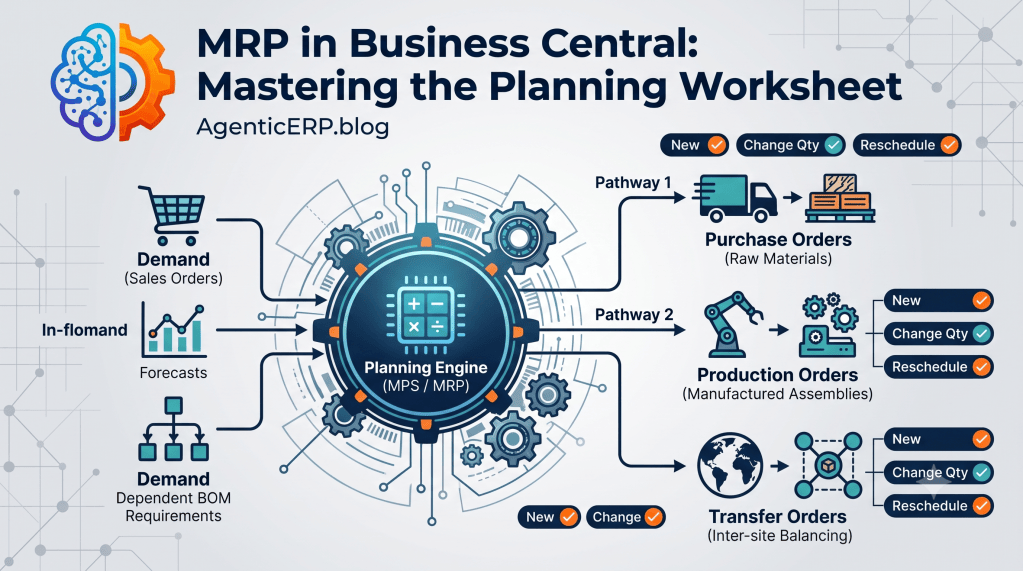
Balancing supply and demand across hundreds or thousands of SKUs is one of the most critical challenges in enterprise operations. Procure too late, and production lines grind to a halt while customer orders miss their delivery windows. Procure too early or in excess, and working capital is locked up in dusty warehouse pallets.
In Microsoft Dynamics 365 Business Central, the Planning Worksheet is the central brain that solves this equation. It runs the dual calculation engines of Master Production Schedule (MPS) and Material Requirements Planning (MRP) to reconcile real-time gross requirements against available stock and scheduled inbound supply.
Understanding how this engine thinks—how it nets demand, respects planning parameters, and issues action messages—is essential for any solution architect or supply chain consultant.
In this deep dive, we break down the mechanics of the Planning Worksheet, how the MRP calculation engine operates, and how to execute suggested replenishment orders with confidence.
1. MPS vs. MRP: What Is the Difference?
When you launch the calculation dialog in Business Central, you are presented with options for MPS and MRP. While they run within the same worksheet, they serve distinct planning tiers:
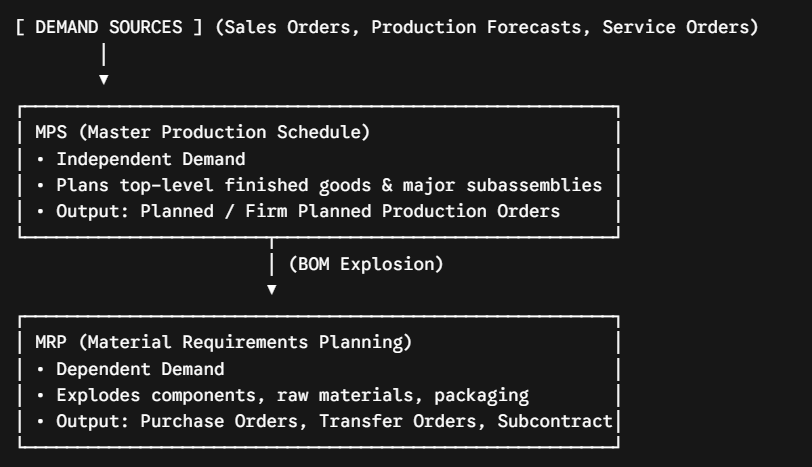
- MPS (Master Production Schedule): Addresses independent demand—items requested directly by customers or driven by sales forecasts. It calculates replenishment for finished items and top-level assemblies.
- MRP (Material Requirements Planning): Addresses dependent demand—raw materials, hardware, ingredients, and subcomponents required to manufacture the items planned by MPS.
Architect Tip: You can run MPS and MRP concurrently, or calculate MPS first to let planners manually review and level the master schedule before exploding dependent component demand through an MRP run.
2. The MRP Calculation Engine: Step-by-Step
How does Business Central transform sales orders into suggested purchase lines? The calculation engine follows a deterministic four-step sequence:
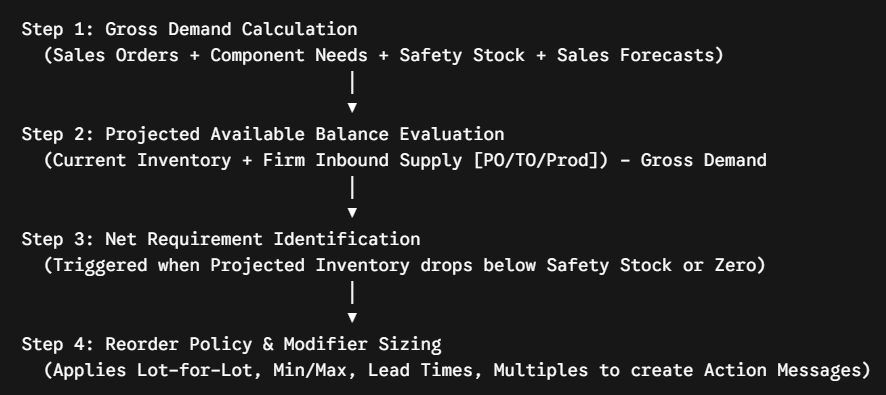
- Calculate Gross Demand: Aggregates open sales order lines, transfer demand, component requirements from active production orders, and production forecasts within the specified date horizon.
- Determine Net Requirements: Compares gross demand against physical inventory on hand and committed inbound supply (existing purchase orders, released production orders, inbound transfers).
- Explode BOMs: For manufactured items with a deficit, the engine reads the active Production BOM and generates gross requirements for each lower-level raw material.
- Apply Planning Modifiers: Adjusts calculated deficits using the Item Card’s reorder policy, order multiples, minimum/maximum order quantities, and safety lead times to generate final replenishment quantities and target order dates.
3. Demystifying Action Messages
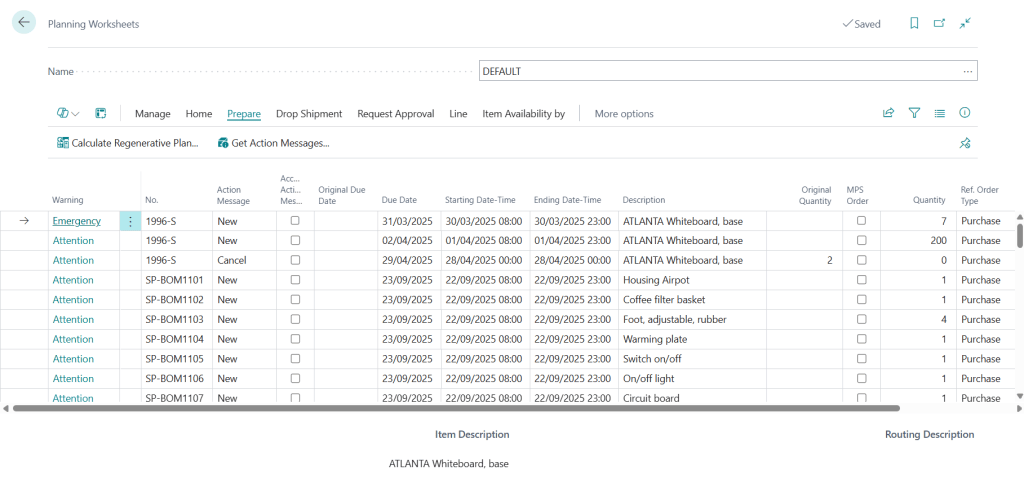
When the Planning Worksheet finishes calculating, it presents a list of lines. Each line is assigned an Action Message telling the planner what operational action to take regarding supply:
| Action Message | Operational Meaning | Typical Cause |
| New | Create a brand-new supply order (Purchase, Production, or Transfer). | Net demand exists with no scheduled supply to cover it. |
| Change Qty. | Adjust the quantity on an existing, unposted supply order. | Customer increased or decreased sales order volume. |
| Reschedule | Shift the due date of an existing supply order earlier or later. | Customer changed delivery date, or vendor lead time shifted. |
| Resched. & Chg. Qty. | Modify both the date and the quantity of an existing order. | Multiple demand fluctuations hit simultaneously. |
| Cancel | Delete an open supply order entirely. | Downstream demand was deleted or cancelled. |
Architect Insight: Many organizations only look for New orders, ignoring Cancel and Reschedule messages. Ignoring cancellations leads to redundant inventory, while ignoring reschedules leads to stock arriving weeks before it is actually needed, tying up cash flow.
4. Item Card Parameters That Govern the Engine
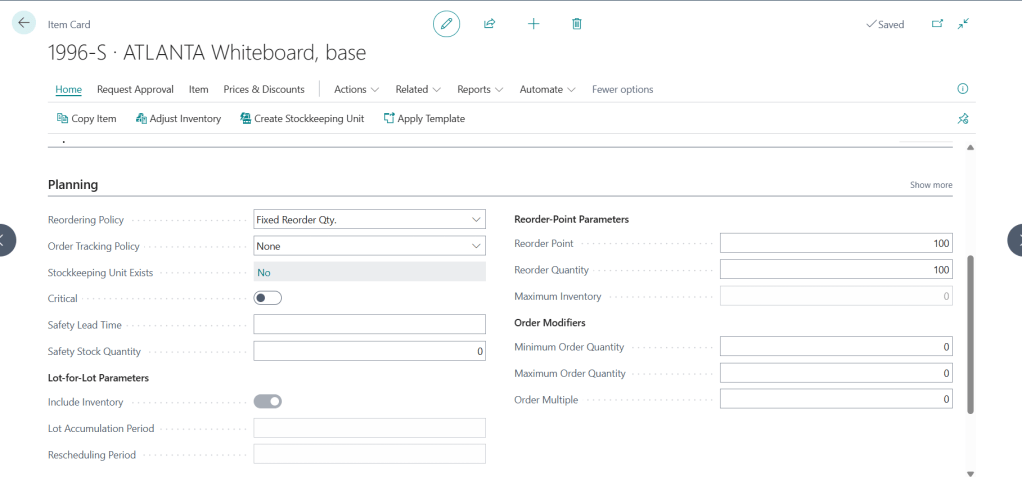
The Planning Worksheet is only as smart as the planning parameters configured on the Item Card or Stockkeeping Unit (SKU) card under the Planning FastTab:
Reorder Policies
- Lot-for-Lot (L4L): Generates supply to match the exact net quantity needed within a defined accumulation window (Lot Accumulation Period, e.g.,
1W). Ideal for expensive, custom, or variable-demand items. - Fixed Reorder Qty.: When inventory breaches the Reorder Point, the system orders a static batch size (Reorder Quantity). Ideal for fast-moving, inexpensive consumables (nuts, bolts, standard cartons).
- Maximum Qty.: When inventory drops below the reorder point, the engine orders enough to restore stock back up to a defined ceiling (Maximum Inventory).
- Order: Creates a 1:1 linked supply order for every single demand line. Frequently used in Make-to-Order (MTO) or engineer-to-order manufacturing.
Order Modifiers & Dampeners
- Minimum / Maximum Order Qty: Prevents ordering below vendor minimums or above warehouse storage capacities.
- Order Multiple: Enforces packaging constraints (e.g., ordering in pallet sizes of 100).
- Dampener Period / Quantity: Filters out minor date shifts or trivial quantity variances, stopping the engine from generating noise (e.g., suggesting a reschedule for an order that shifted by only 24 hours).
5. Carrying Out Action Messages
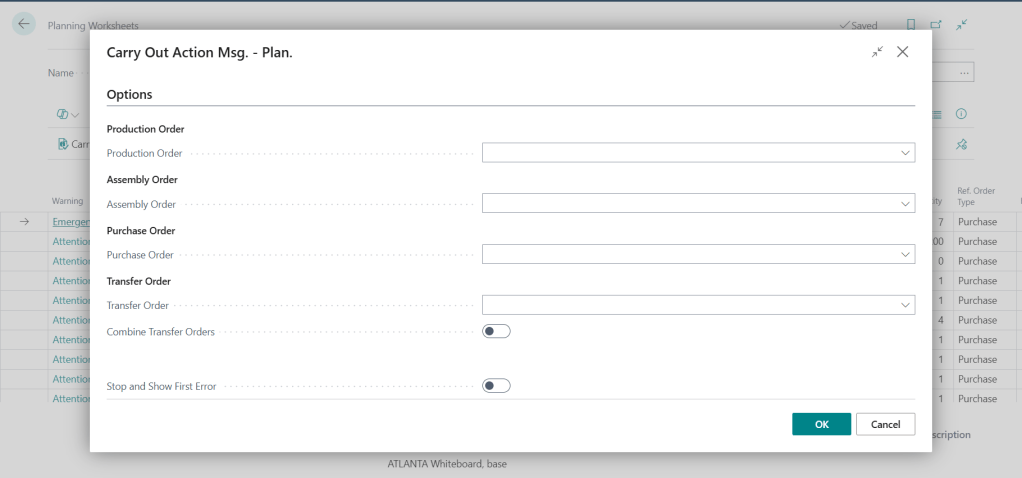
Once the planner reviews and validates the lines in the Planning Worksheet:
- Check the Accept Action Message box on the desired lines (use Select All or filter selectively).
- Click Process -> Carry Out Action Message.
- In the execution window, define the target destination for each order type:
- Production Orders: Create as Planned, Firm Planned, or Released.
- Purchase Orders: Create open Purchase Orders or update requisition lines.
- Transfer Orders: Create Transfer Orders across defined transfer routes.
- Click OK. Business Central clears the processed lines from the worksheet and instantiates the transactional documents across the system.
Common Pitfalls & Troubleshooting
| Issue / Symptom | Root Cause | Solution |
| “Worksheet suggests buying items already in stock” | Item stock is located in a Bin marked non-pickable or in a Location not included in the calculation filter. | Verify the Location filter on the calculate request page and review bin types. |
| Endless tiny purchase suggestions | Reorder policy is set to Lot-for-Lot with an empty Lot Accumulation Period, causing one PO per individual demand line. | Define a reasonable accumulation window (e.g., 1W or 2W) to consolidate weekly demand. |
| Overwhelming volume of reschedule messages | No Dampener Period defined on the item or in Manufacturing Setup. | Set a dampener window (e.g., 3D) so the engine ignores minor scheduling noise. |
Looking Ahead: The Agentic ERP Horizon 🤖
While the traditional Planning Worksheet executes deterministic mathematical calculations, human planners still spend hours validating suggestions, emailing vendors for confirmations, and resolving supply exceptions.
In an Agentic ERP architecture:
- Autonomous Demand Sensing Agent: An AI agent inspects unconfirmed pipeline sales quotes, macroeconomic pricing shifts, and regional market trends. It dynamically adjusts safety stock levels and lot accumulation buffers inside Business Central before the Planning Worksheet runs.
- Supplier Negotiation & Commitment Agent: When the planning worksheet outputs an Action Message for a critical raw material, the agent contacts the approved vendor API, validates lead time and volume pricing tiers, confirms delivery feasibility, and flags only true supply risks for human sign-off.
Summary
The Planning Worksheet is the heartbeat of supply chain management in Microsoft Dynamics 365 Business Central. By decoupling MPS from MRP, tuning reorder policies, and applying dampeners to filter out operational noise, planners transform chaotic spreadsheets into automated, reliable replenishment streams that protect balance sheet capital and satisfy customer commitments.

