
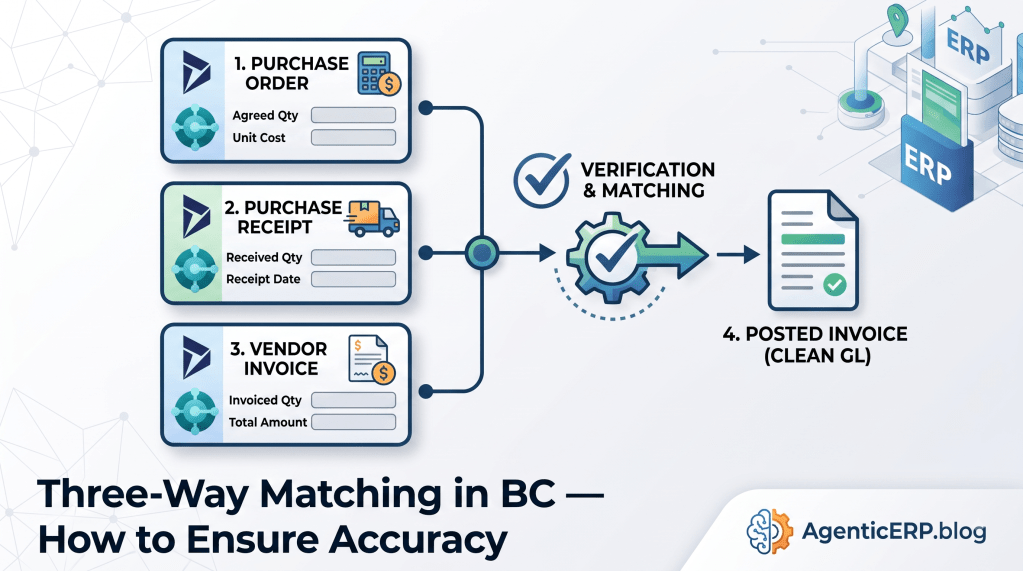
When Accounts Payable teams process purchase invoices manually, the risk of financial leakage spikes. Paying for goods that were never received, accepting price variations over agreed purchase orders, or double-posting invoices are common bottlenecks in growing organizations.
In Microsoft Dynamics 365 Business Central, three-way matching isn’t just an accounting policy it’s a system-enforced control mechanism. By aligning the Purchase Order (PO), the Purchasing Receipt (Goods Receipt Note), and the Vendor Invoice, Business Central ensures that you only pay for what was ordered and physically received at the agreed price.
In this guide, we’ll break down how to configure, execute, and troubleshoot three-way matching in Business Central to maintain complete AP accuracy.
What is Three-Way Matching?
Three-Way Matching verifies three core documents before an invoice is approved and posted to the General Ledger:
- Purchase Order (PO): What did we agree to buy, and at what price?
- Purchase Receipt (GRN): What did the warehouse actually receive?
- Purchase Invoice: What is the vendor billing us for?
If all three align within acceptable tolerances, the invoice is posted. If there is a mismatch such as a higher price or unreceived items the system highlights the discrepancy or prevents posting based on your control settings.
Step 1: Configuring Prerequisites for Strict Matching
Before executing three-way matching, key configurations must be enabled on the Purchasing & Payables Setup card.
Key Setup Parameters:
- Default Quantity to Receive: Set this to Blank (or None) rather than Option: Quantity. This forces warehouse or receiving staff to physically count and enter received quantities instead of blindly accepting the full PO quantity.
- Over-Receipt Codes: Configure allowed percentage thresholds if vendors occasionally deliver extra stock.
- Exact Cost Reversing Mandatory: Ensure this is toggled ON to prevent valuation drift when handling invoice returns or line corrections later.
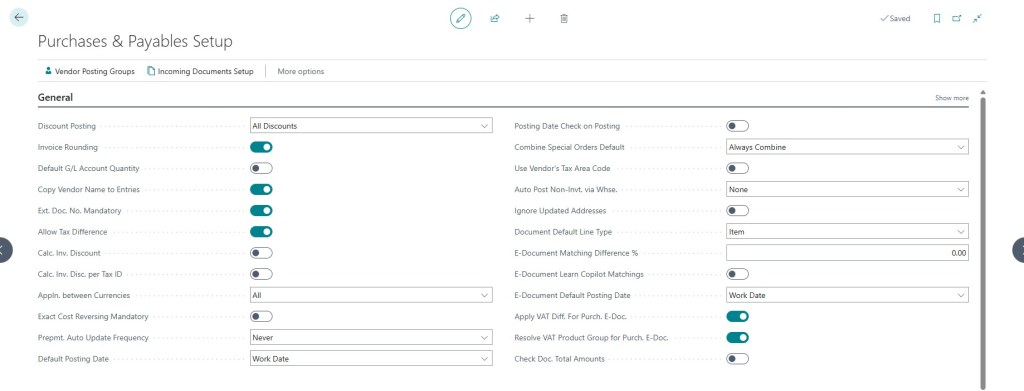
Architect Note: Go to Purchasing & Payables Setup → General tab. Ensure “Check Prepmt. when Posting” and document locking rules are active if your procurement process utilizes partial prepayments.
Step 2: Executing the 3-Way Match in Business Central
Business Central natively supports two primary workflows for matching invoices against receipts: Direct PO Invoicing and the Get Receipt Lines workflow.
Method A: Matching Directly on the Purchase Order (Standard Flow)
- Open the Purchase Order.
- When goods arrive, enter the physical quantity received in the Qty. to Receive field and post the document as Receive.
- When the vendor invoice arrives, enter the vendor’s invoice number in the Vendor Invoice No. field.
- Verify that Qty. to Invoice matches the quantity received.
- Confirm the Direct Unit Cost matches the PO line rate.
- Post the document as Invoice.
Method B: The “Get Receipt Lines” Workflow (Best for Consolidated Invoicing)
When vendors send a single summary invoice covering multiple separate shipments/deliveries, use a standalone Purchase Invoice:
- Create a new Purchase Invoice and select the Vendor No.
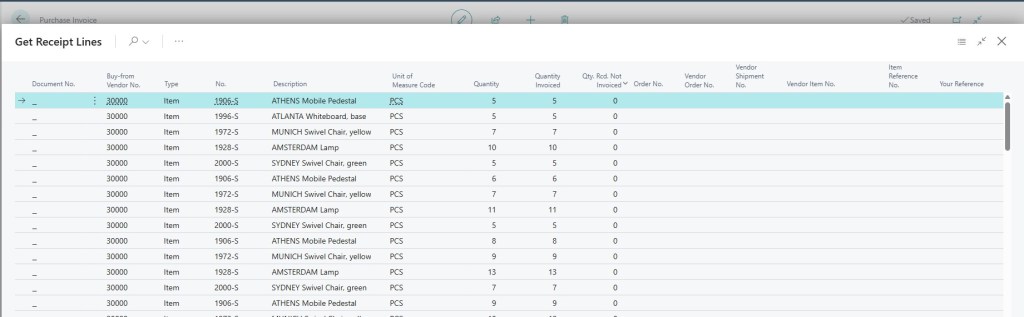
- In the line section, navigate to Functions / Line Actions → Get Receipt Lines.
- A page will open displaying all un-invoiced posted receipts for that vendor.
- Select the specific receipt lines corresponding to the invoice and click OK.
- Business Central pulls in the exact quantities received, locking the lines to those specific receipt entries.
- Verify the line unit costs and post the invoice.
Step 3: Handling Price & Quantity Tolerances
Discrepancies happen. Here is how to handle the two most common variance scenarios:
Scenario 1: Invoice Price Exceeds Purchase Order Price
If the vendor bills a higher unit price than agreed on the PO:
- Option A (Strict Governance): Reject the invoice, reopen the PO, route an approval request for the price increase, and then post.
- Option B (Charge Assignment): If the price difference represents a legitimate freight or handling charge, add an Item Charge line to the invoice and assign it to the received item lines to preserve inventory valuation.
Scenario 2: Partial Invoicing / Short Shipments
If the vendor invoices for 100 units but the warehouse only received 80 units:
- Only 80 units should be invoiced against the receipt line.
- The remaining 20 units remain open on the PO under Qty. Rcvd. Not Invoiced or Quantity Outstanding.
- Never alter the received quantity on a posted receipt line to make an invoice pass.
Common Pitfalls & Troubleshooting
| Issue / Error | Root Cause | Solution |
| “Nothing to Invoice” | The document was not posted as Received prior to attempting invoice posting. | Ensure the warehouse posts the receipt first, or verify that Qty. to Receive is not zero. |
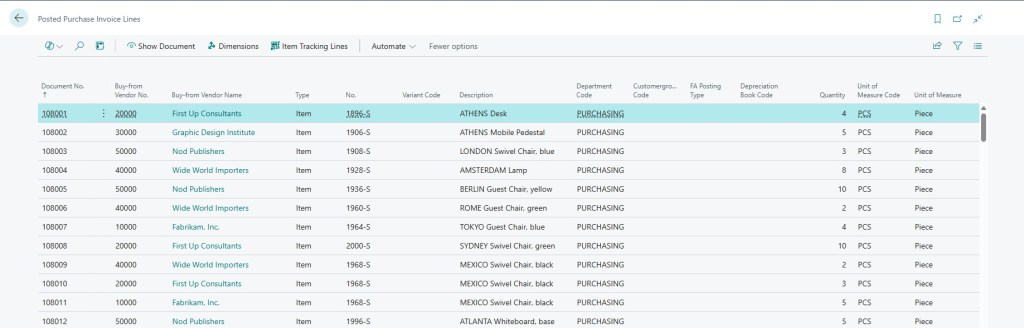
| G/L Account Discrepancy | Direct posting was made to a G/L account instead of pulling the Posted Receipt line. | Train users to always use Get Receipt Lines on Purchase Invoices rather than manual line entries. |
| Inventory Valuation Mismatch | Invoice posted with a different cost without adjusting the item valuation layer properly. | Use Item Charges for secondary costs (freight/duty) instead of changing the direct base unit cost manually. |
Looking Ahead: The Agentic ERP Horizon 🤖
While native Business Central handles 3-way matching logic seamlessly, human AP clerks still waste hours manually opening PDF invoices, checking lines against receipt numbers, and typing numbers into BC.
In an Agentic ERP architecture:
- An Autonomous AI Agent monitors the AP inbox, extracts invoice data via OCR, and queries Business Central APIs.
- The agent calls BC endpoints to search for matching open POs and posted receipt lines.
- If all lines match within 0% variance, the agent automatically executes the Get Receipt Lines action, attaches the PDF, and posts the Purchase Invoice.
- If a price variance exceeds defined thresholds, the agent routes an exception notification via Teams directly to the Purchasing Manager with the side-by-side mismatch highlighted.
Summary
Implementing tight three-way matching in Business Central protects your bottom line and ensures clean financial audits. By setting up strict receiving setups, utilizing Get Receipt Lines, and establishing clear variance policies, your AP team can operate with complete confidence.

