
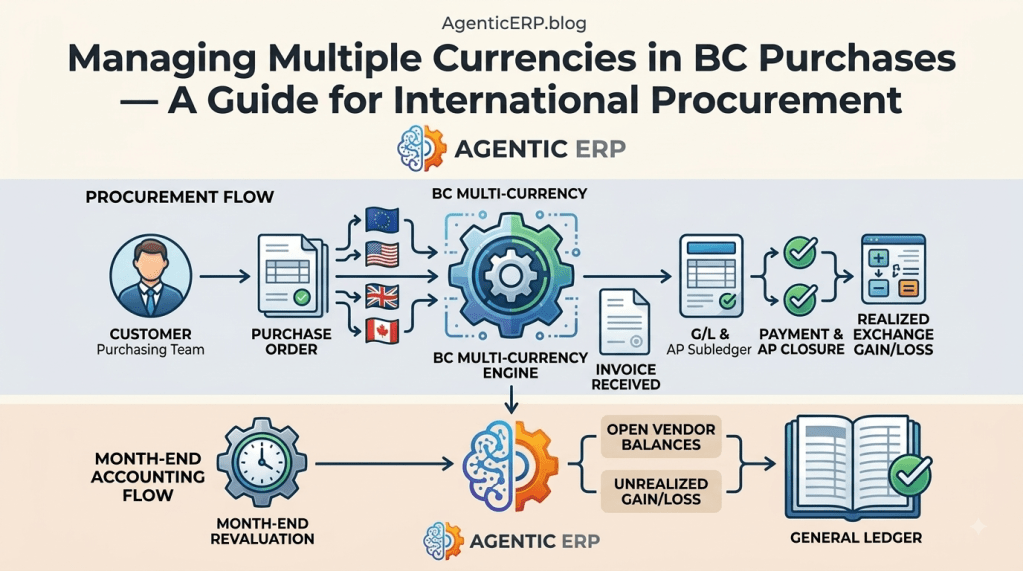
As businesses expand globally, procurement from international suppliers becomes a necessity. While Business Central simplifies global trade, the Accounts Payable function must execute precise currency control to manage exchange rate risk, satisfy tax compliance, and report accurate financial results.
In Microsoft Dynamics 365 Business Central, a multi-currency setup allows you to record purchase transactions, maintain accurate foreign currency vendor balances, and cleanly manage the realized/unrealized gains and losses that inevitably arise.
In this guide, we will break down the essential steps to configuring and executing multi-currency purchase management in Business Central.
What is Multi-Currency Purchasing?
A standard purchase transaction might look like this: you create a Purchase Order for €5,000 when the Euro is trading at 1.10 against your Local Currency (LCY). When the final invoice arrives and is posted weeks later, the rate has shifted to 1.12. When you finally pay the vendor a month later, the rate is 1.08.
These fluctuations impact your inventory valuation and your AP liability. Business Central automates the complex accounting of matching these shifting values.
Step 1: Core Multi-Currency Prerequisites & Setup
Before creating foreign currency POs, a robust multi-currency data framework must be established.
1. The Currencies Page
Go to the Currencies page. Here, you define every non-LCY currency your company interacts with (e.g., EUR, GBP, USD). This configuration is critical.
Architect Note: For each Currency, ensure Tax/VAT Rounding Precision and Invoice Rounding Precision match your local compliance and internal policies to avoid pennies of rounding difference posting in your G/L.
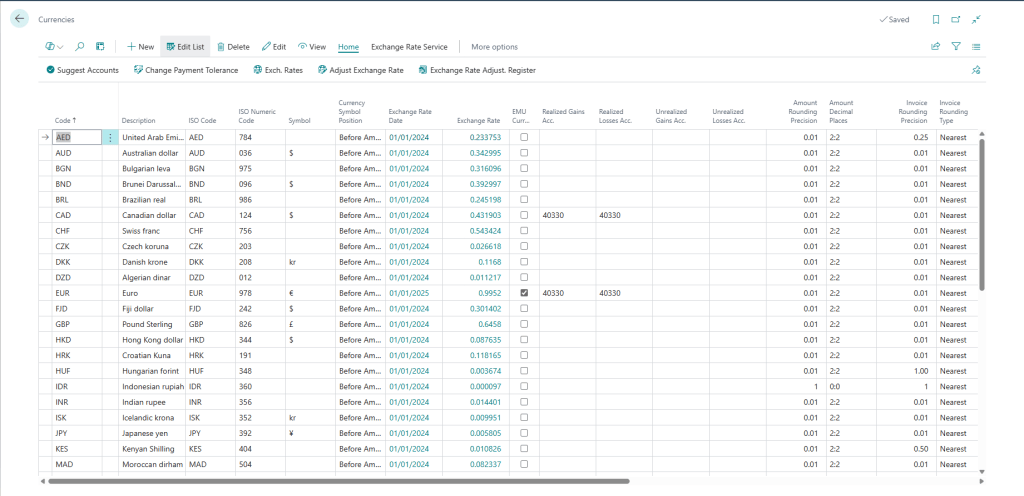
2. General Ledger Accounts (The Gain/Loss accounts)
On the Currency card, map the G/L accounts where realized and unrealized currency differences will post:
- Realized Gains Account / Realized Losses Account
- Unrealized Gains Account / Unrealized Losses Account
3. Currency Exchange Rates (Automated Updates)
Business Central can pull daily, live exchange rates. Setting up an Exchange Rate Service (e.g., connecting to the European Central Bank API) ensures your system has the most current rates for transaction day forecasting.
Step 2: Configuring Vendor and Master Data
To automate currency selection, map your vendor master data:
- Vendor Card: On the Payment tab of the Vendor card, set the Currency Code (e.g., USD). This forces any new PO or Invoice for this vendor to use USD. If this field is blank, Business Central assumes all transactions are in your Local Currency (LCY).
- Posting Groups: Ensure your Vendor Posting Groups and General Posting Setup include the exchange difference accounts defined in Step 1.
Step 3: Executing a Foreign Currency Purchase Transaction Workflow
Workflow Scenario:
Your Canadian company (LCY = CAD) orders custom parts for $10,000 USD.
Step A: Creating and Posting the Purchase Invoice
- Create a Purchase Invoice. Select the Vendor (mapped to USD).
- In the Invoice Header under the Invoice Details tab, verify the Currency Code is USD and check the Currency Factor field (the exchange rate relative to your LCY). Example: Factor is 0.74, meaning 1 CAD = 0.74 USD.
- Add the Item lines. Business Central displays both the USD unit cost and the LCY (CAD) cost in the line details.
- Post the invoice.
- Accounting Result: Business Central converts $10,000 USD to $13,513.51 CAD (using the 0.74 rate). It posts $13,513.51 CAD to your AP Liability and records the inventory valuation.
Step B: Executing the Payment in BC
The vendor must be paid a month later. The USD remains $10,000, but the rate has changed. 1 CAD now = 0.72 USD. It now costs more CAD to buy the $10,000 USD required for the payment.
- Open the Payment Journal.
- Select the vendor and enter $10,000 in the Amount field (setting the Currency Code to USD). Business Central calculates the new CAD equivalent: $13,888.89 CAD (at the 0.72 rate).
- Post the payment.
- Accounting Result: BC records the cash outflow of $13,888.89 CAD. It reverses the original $13,513.51 CAD AP liability. The difference ($375.38 CAD) is automatically posted as a Realized Exchange Loss to the G/L account defined on the USD currency card. The AP subledger clears the invoice cleanly.
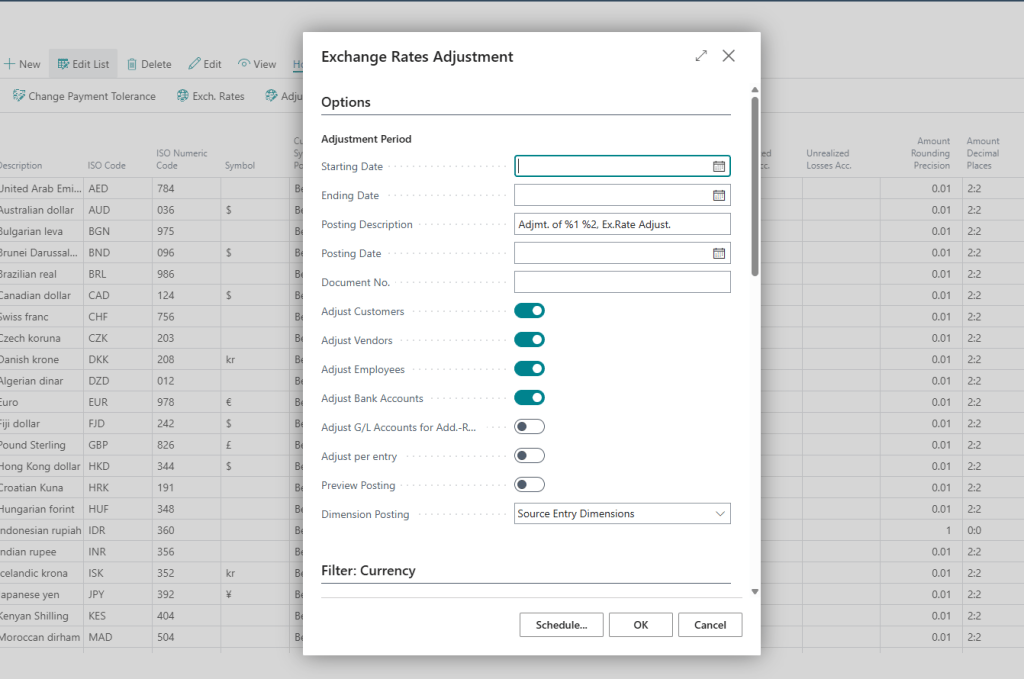
Essential: The ‘Adjust Exchange Rates’ Batch Job (Month-End)
Running the Adjust Exchange Rates batch job is mandatory before closing any accounting period. This process scans all open foreign currency Vendor, Customer, and Bank Account balances and revalues them using the end-of-month exchange rate.
- Process: Select the period-end and the end-of-month rate (e.g., 1 CAD = 0.73 USD).
- Result: The USD balance on the Vendor card doesn’t change, but the LCY valuation in your AP control account is adjusted. The gain or loss is posted as an Unrealized Gain/Loss to the appropriate G/L account. This ensures your period financial statements accurately reflect the currency risk on that specific date.
Handling Exchange Rate Deviations (Exception Flow)
If you must process an invoice at a specific, locked-in exchange rate different from the system’s daily rate (e.g., a contract-negotiated forward rate), you can manually override the Currency Factor field on the specific purchase document header before posting. This adjustment only impacts that specific transaction and does not alter the system’s primary exchange rate history.
Looking Ahead: The Agentic ERP Horizon 🤖
Executing multiple currency workflows is logic-intensive. It requires AP staff to check vendor setups, verify correct rates before posting, and manage complex period-end adjustments.
In an Agentic ERP architecture:
- An Autonomous AI Agent can monitor official forex rates and automatically call BC APIs to update daily system exchange rates without human intervention.
- When a high-value purchase order is created in a foreign currency, an agent can automatically analyze the impact of current exchange rate volatility on forecasted project margins.
- If a rate spike occurs, the agent can autonomously trigger a Teams notification to the CFO suggesting the treasury team consider currency hedging activities (like forward contracts) based on upcoming foreign payable exposure.
Summary
Successfully managing multi-currency purchasing in Business Central protects your bottom line and delivers accurate financial visibility. By defining precise rounding rules on your Currency cards, establishing automated exchange rate services, and running the revaluation batch job consistently at month-end, you maintain complete financial control over your global supply chain.


Leave a Reply